

A vape that quits mid-session ruins the mood fast. The good news: a Geek Bar Pulse 2 not working issue usually traces back to one of four things. Those are the mode setting, the battery, the airflow, or an empty device.
This guide walks through each cause in order, from the quickest checks to the signs that tell you to stop. You will also find a comparison table that separates an empty device from a broken one, plus a full spec table for reference.
One note before we start: you must be 21 or older to buy and use vape products in the US.
In This Guide
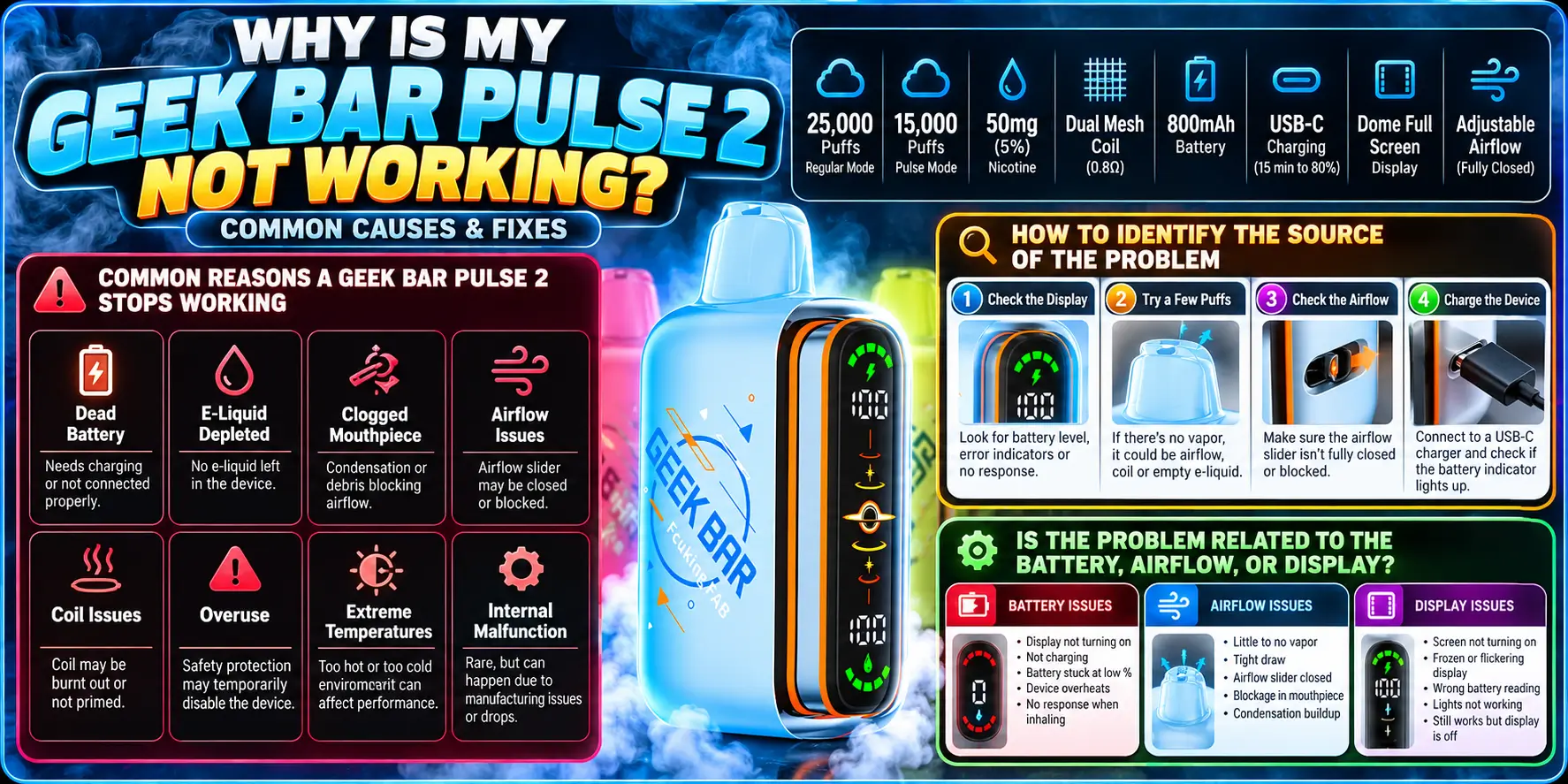
In most cases, a low battery, the wrong mode, blocked airflow, or an empty device causes the problem. Check those four first. A true hardware fault is less common.
The usual suspects are simple. Your Geek Bar Pulse 2 has an 800mAh battery, a dual mesh coil, and an adjustable airflow slider, so each part can cause its own symptom.
Work through the checks in a fixed order: power, mode, airflow, then display. Change one thing at a time.
That way you know which fix worked, and you do not waste time repeating steps. Think of it as detective work, minus the trench coat.
Match your symptom to the likely cause. A dead, blank device points to the battery. A lit screen with no vapor points to airflow or e-liquid. A screen that acts strangely points to the display or a low charge.
The sections below cover each case in detail.
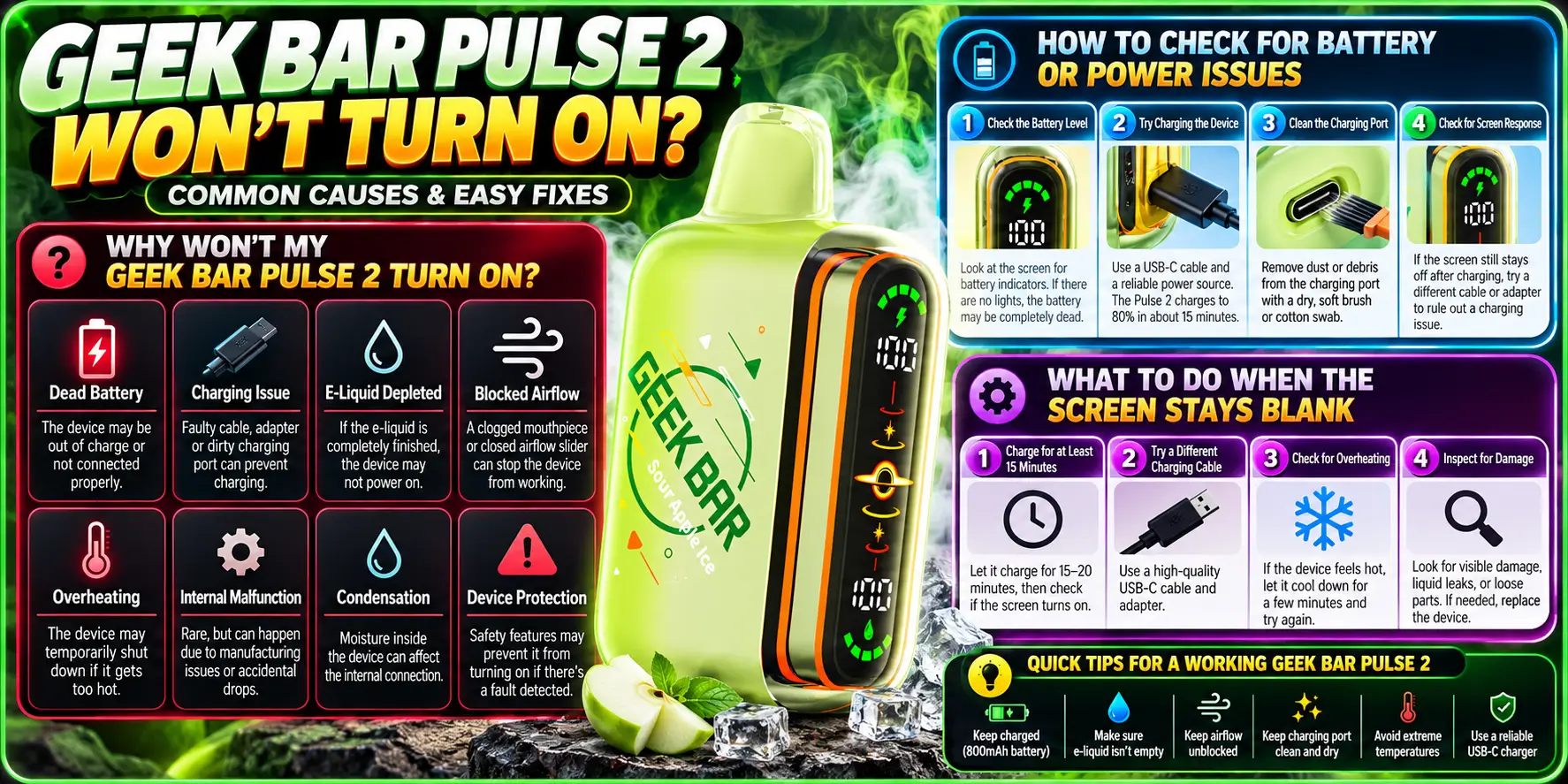
A device that will not wake up almost always has a battery problem. Charge it fully before you try anything else. If it still stays dark after a full charge, move on to the mode and airflow checks.
The most common reason is a flat battery. Lithium-ion cells lose charge slowly even while stored, so a device that sat in a drawer for weeks can arrive at zero.
A closed airflow slider can also make the device seem dead, because the draw sensor needs air movement to trigger.
Plug the device into a USB-C cable and a wall adapter, not a laptop port that may supply weak power. Leave it for at least 30 minutes.
The spec sheet lists a 15-minute charge to 80%, so a device that stays dark after half an hour deserves a second look at the cable and port.
Open the airflow slider, then take a firm draw. The screen may wake only on activation. If nothing lights up, charge for 30 minutes and try again.
Still blank after that? Try a different cable and a different adapter before you blame the device.
Yes. A fully drained battery can take a few minutes on the charger before any light or screen response appears.
Give it time. Pulling it off the charger after 60 seconds is a common mistake. If you want the full process, our Geek Bar Pulse 2 Charging Guide covers it step by step.
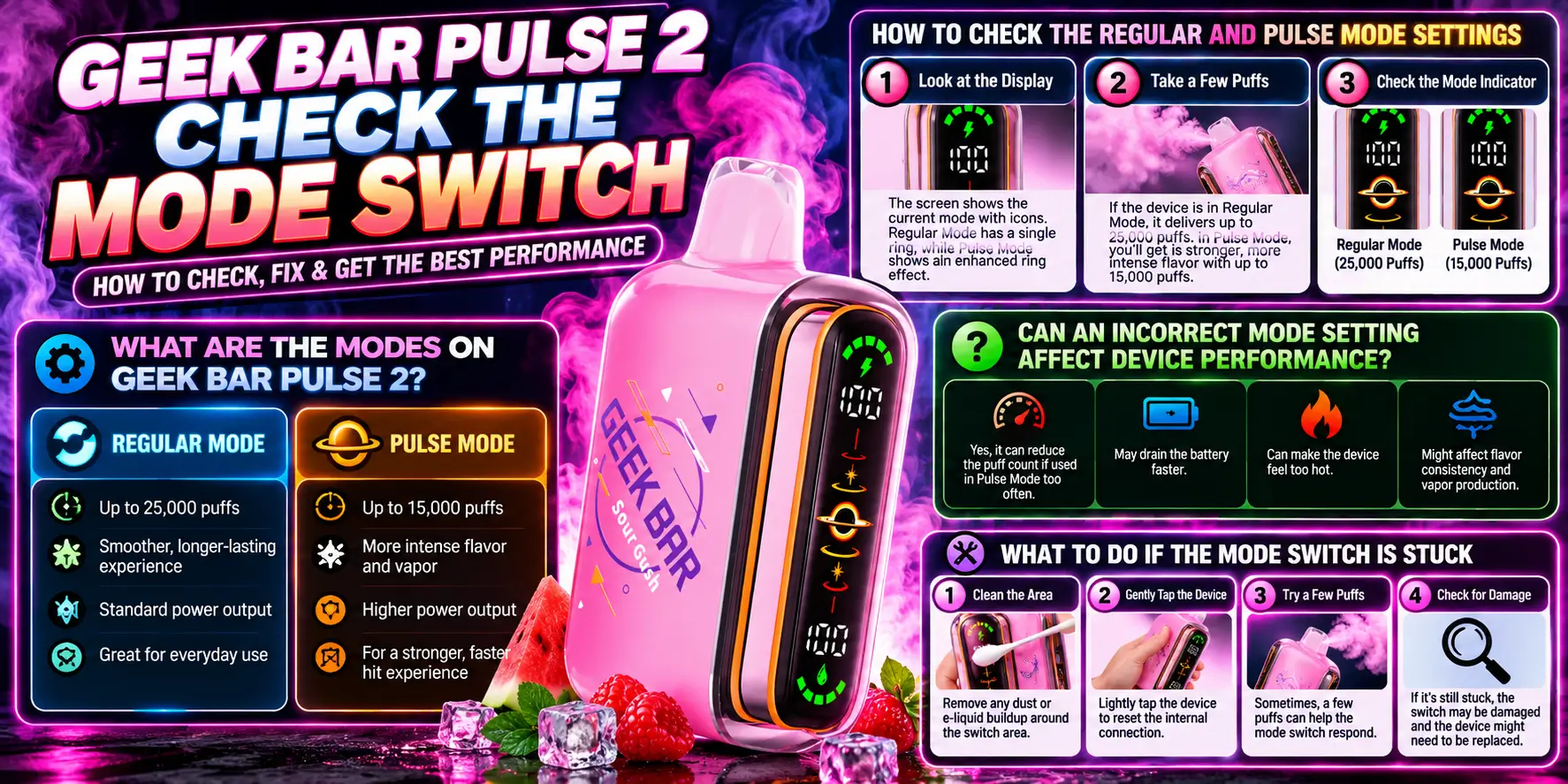
The Pulse 2 runs in Regular mode or Pulse mode. A wrong setting can make the device feel weaker or different, even when nothing is broken. Confirm your mode before you assume a fault.
Look at the mode control and the display. The display shows your current mode, so compare it with the one you want.
Switch modes once, wait a few seconds, then take a test draw. Do not force the control past its stop.
Yes. The spec lists 25,000 puffs in Regular mode and 15,000 in Pulse mode. That gap suggests the two modes deliver output differently.
If the vapor feels stronger or lighter than usual, a mode change is the first thing to rule out.
Do not pry at it. Clear lint from around the control, then try a gentle, steady movement.
If it still will not move, stop and contact the seller. Forcing a stuck control can damage internal parts.
A faulty switch changes position but the display never updates, or the display flips modes on its own.
Test it three times. If the result is inconsistent each time, you likely have a defective unit, and a replacement is the right move.
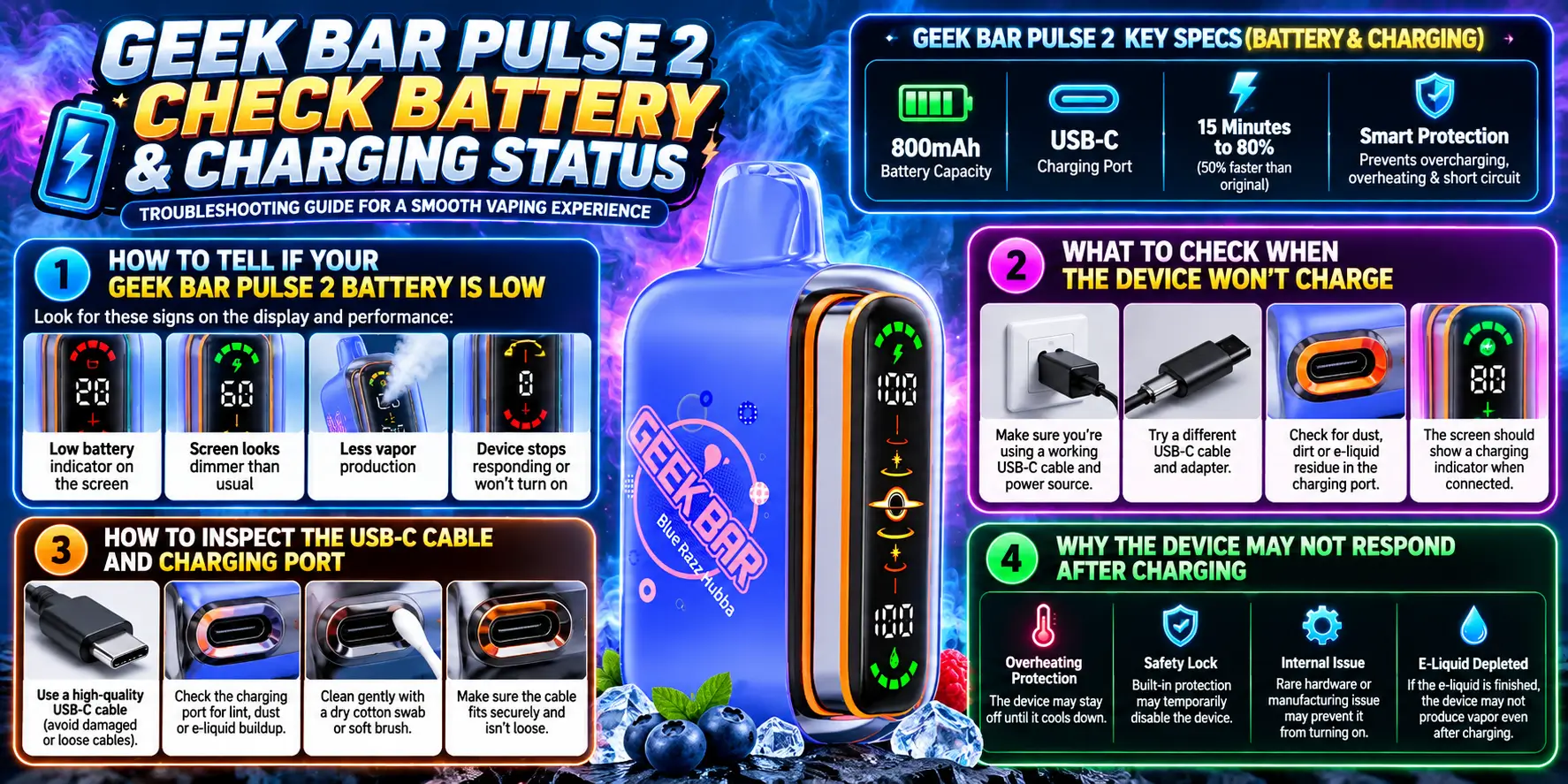
Charging problems come from three places: the cable, the port, or the adapter. Test all three before you call the device dead. The Pulse 2 uses a USB-C port and reaches 80% in about 15 minutes, so a healthy unit charges quickly.
Weak vapor, a dim screen, or a battery indicator showing low all point to a low charge. The output often fades before the device shuts off.
Charge it as soon as you see the warning. Our Geek Bar Pulse 2 Battery Life breakdown shows how long a charge should last.
Swap the cable first, because cables fail more often than ports. Then try another adapter and another outlet.
If none of that works, see our guide to a Geek Bar Pulse 2 Won't Charge problem for deeper fixes.
Check the cable for bent connectors, frayed insulation, and loose fit. Then look into the port with good light.
Pocket lint is a classic culprit and can stop the plug from seating. Remove it with a dry wooden toothpick, never metal, and never while the device is plugged in.
A fully charged device that stays silent usually has an airflow or mode issue, not a power issue.
Unplug it, open the airflow slider, and take a slow draw. Also check that the liquid has not run out, which we cover in section seven.
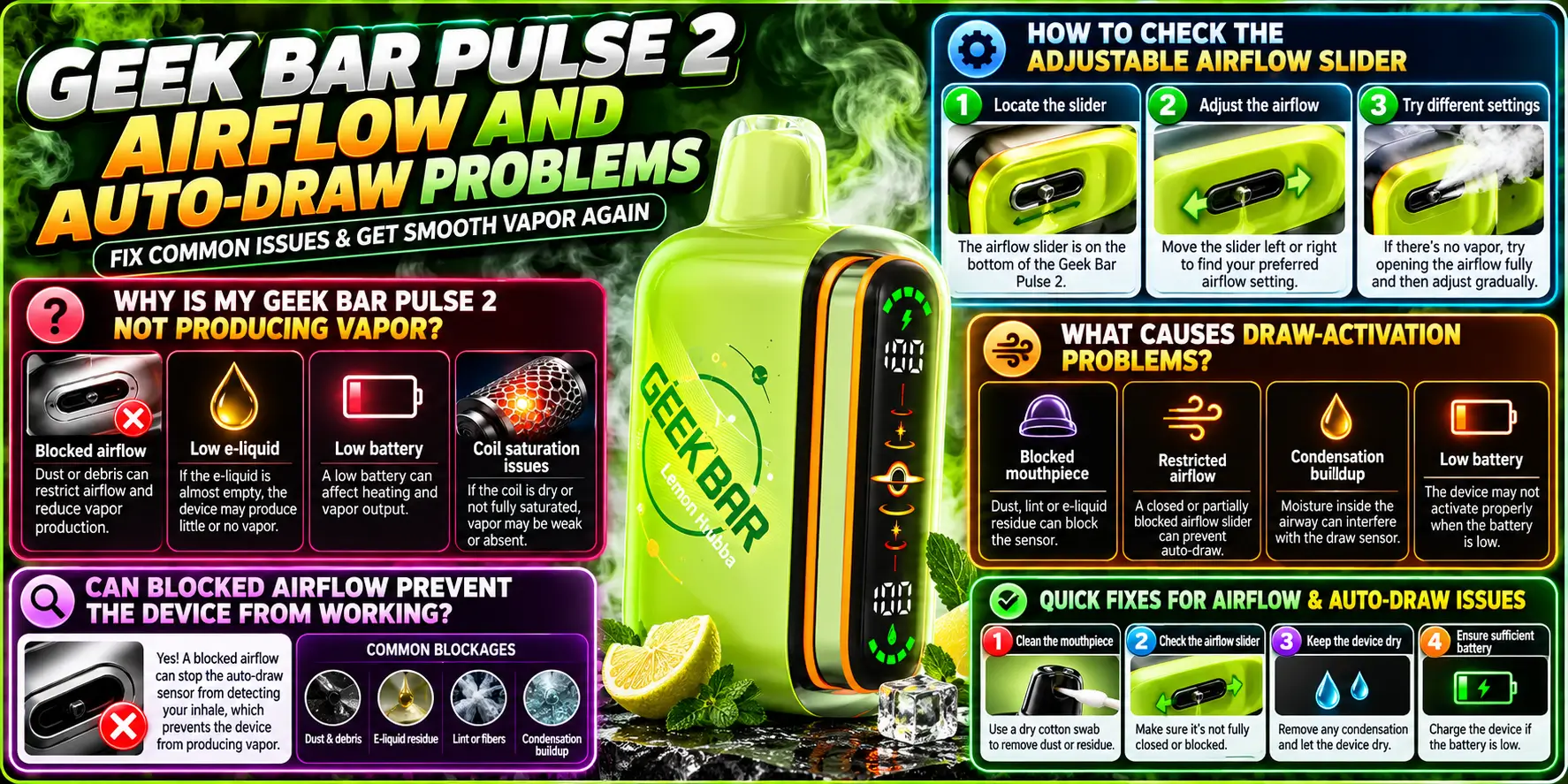
The Pulse 2 is draw-activated, so it needs clean airflow to fire. A blocked or closed airflow path stops the device cold. Open the slider and clear the mouthpiece before anything else.
Three causes lead the list: closed airflow, a flooded or clogged coil area, and empty e-liquid.
Start with airflow, since it takes five seconds to check. Then wipe the mouthpiece and try a few gentle draws.
This model has an adjustable slider with a fully closed position. Slide it toward the open end and take a draw.
Then test a middle position. If the slider feels gritty or will not move, stop forcing it.
The sensor needs enough air movement to trigger. Very short or very soft draws may not register.
Moisture inside the mouthpiece can also confuse the sensor. Hold the device upright, wipe the tip, and try a slow, even draw of two to three seconds.
Yes, and it happens often. Lint in a pocket or bag can cover the air inlet, and a closed slider cuts airflow entirely.
Clear the inlet gently with a dry cloth. Never push a pin or needle into the openings.
Inconsistent firing often means low battery, residual moisture, or a partly blocked inlet.
Charge the device, wipe the tip, and open the slider fully. If it still cuts in and out, treat it as a possible fault and contact your seller.
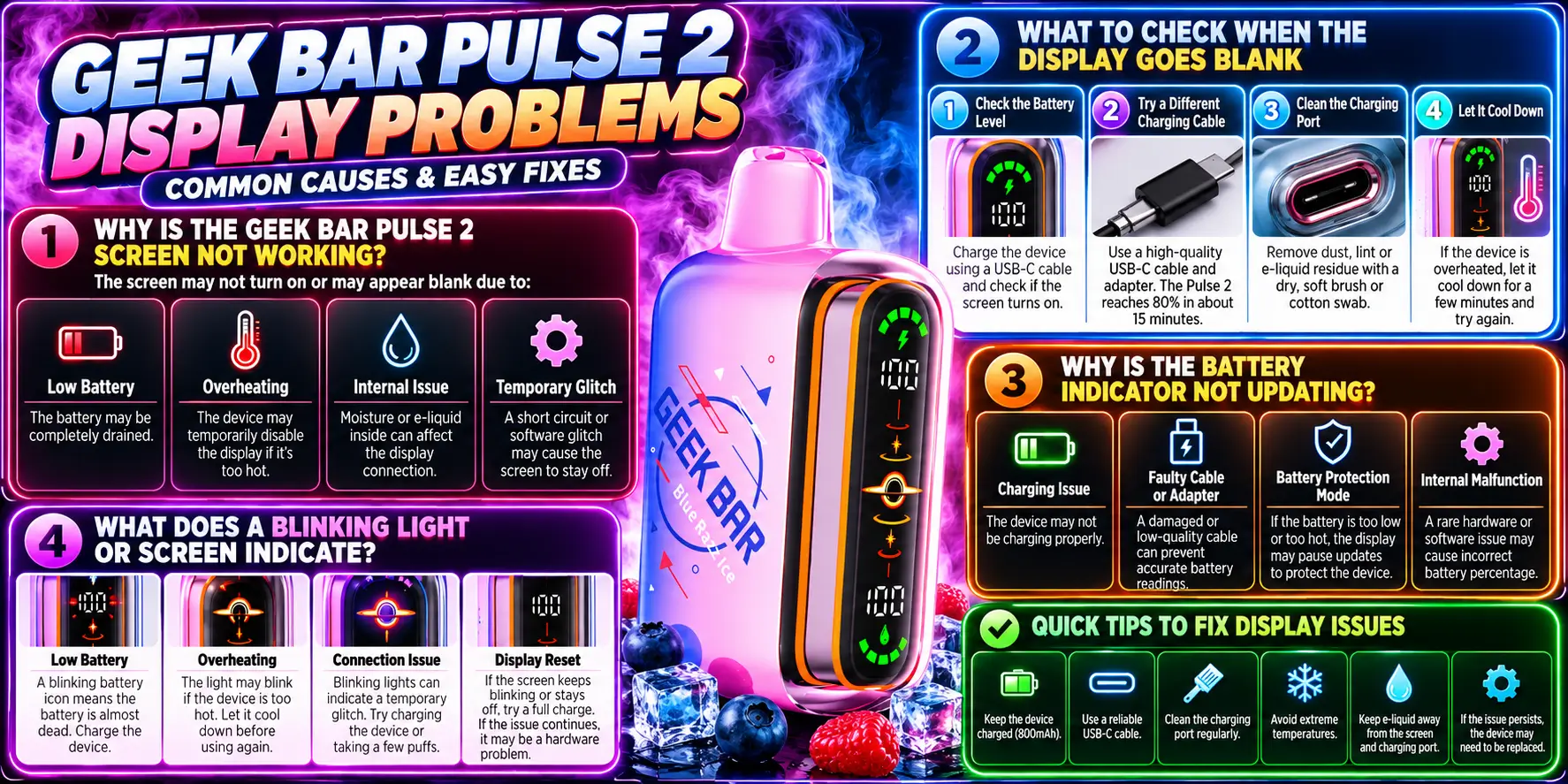
The Pulse 2 has a Dome Full Screen with a Binary Orbit Light. When the display acts up, check the battery first, since a low charge dims or blanks the screen.
A low battery is the top cause. A screen that never lights on a fully charged device may point to a defect.
Charge the device for 30 minutes, then take a draw. A screen that stays dark through that test needs a replacement.
Try these checks in order: charge, draw, then open the airflow slider.
The display may only light up on activation, so a dark screen at rest is not always a problem.
The indicator can lag during charging or while the device sits idle. Take a draw and check again.
If the indicator stays frozen across several draws and a full charge, the display may be faulty.
Blinking patterns can mean low battery, charging status, or an activation issue. The exact meaning depends on the pattern, so check your packaging for the manufacturer's guide.
When the packaging gives no answer, ask the seller. Guessing wastes time.
Look for cracks, dead patches, flicker, or moisture under the dome.
Visible damage plus odd behavior means the unit is likely defective. Do not open the device to check.
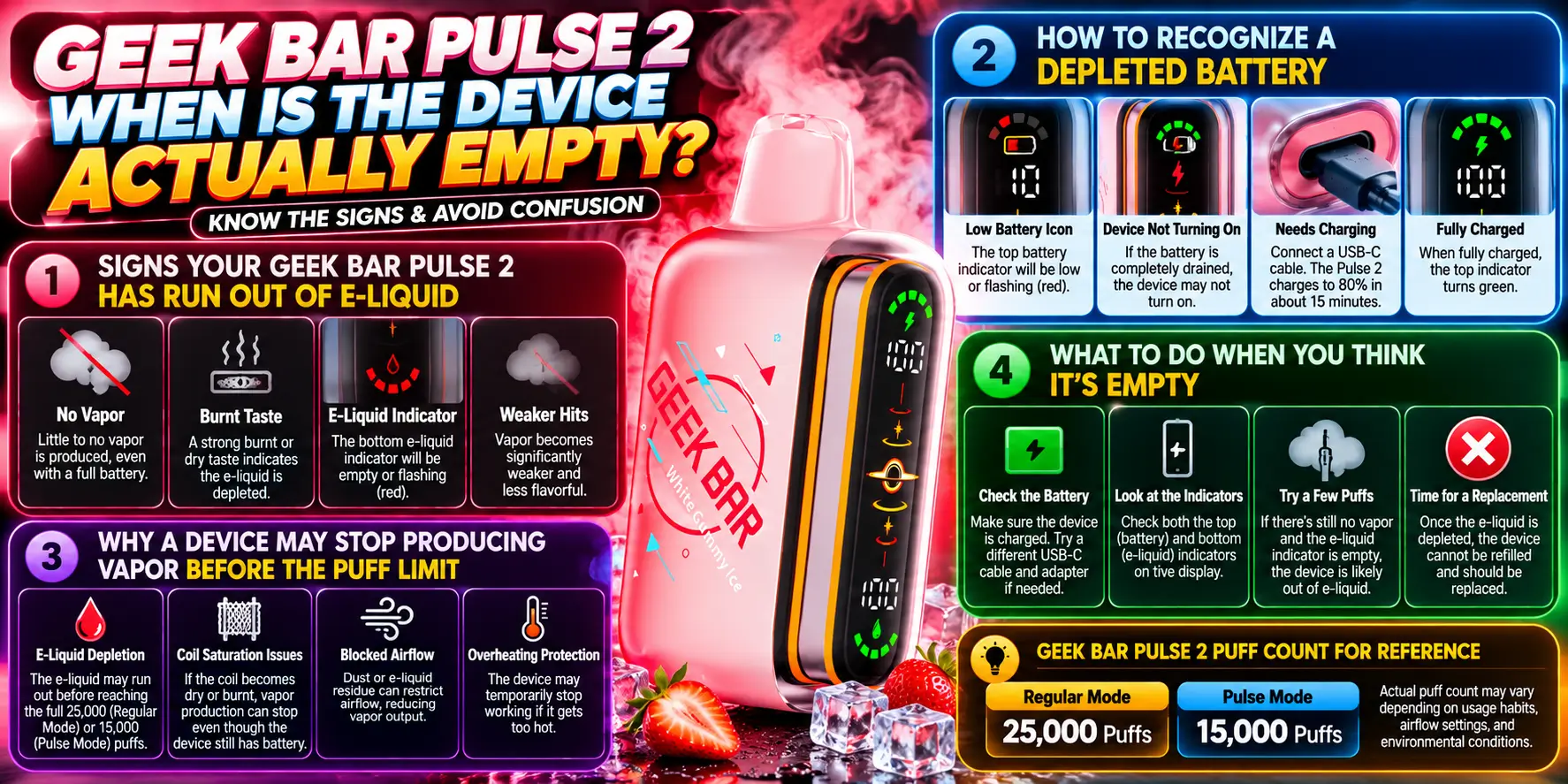
Sometimes nothing is wrong. Disposables run out, and the puff counts on the box are estimates. If the flavor fades, the vapor thins, and a full charge changes nothing, the e-liquid is probably gone.
Look for a flavor that fades over several sessions, thin vapor, and a harsh or burnt taste. That last sign means the coil is getting too little liquid.
Do not keep pulling on a device that tastes burnt. It will not recover.
A depleted battery shows up as a dim screen, a low indicator, and weak or no activation. The device recovers after charging.
This is the key difference from an empty tank: a battery problem fixes itself with a charge, while empty e-liquid does not.
Puff counts depend on how you use the device. Long, hard draws use more liquid than short, gentle ones, and chain use drains the tank faster.
The 25,000-puff figure is a manufacturer estimate, so your own result may land lower.
Use this table to tell the two apart quickly.
| What You Notice | Empty Device | Technical Malfunction |
|---|---|---|
| Flavor and vapor | Fade gradually over several sessions | Stop suddenly or never start |
| Taste | Burnt or harsh near the end | Normal taste, or no vapor at all |
| After a full charge | No change in vapor | Screen or activation may still fail |
| Airflow test | Open airflow, still thin vapor | Open airflow, no activation |
| Screen and indicator | Works normally | Blank, frozen, or flickering |
| Best next step | Replace the device | Contact the seller for a replacement |
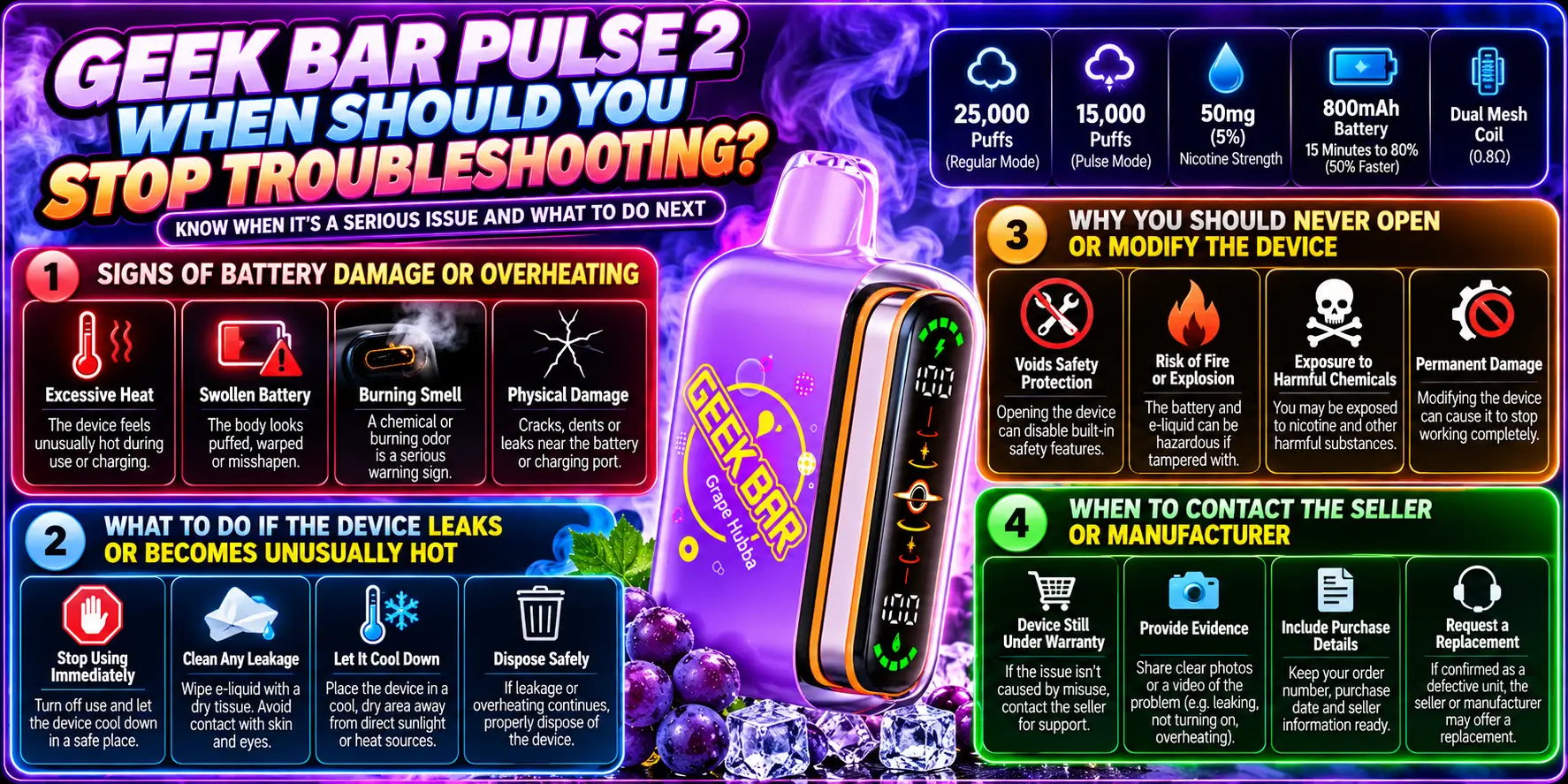
Stop right away if the device gets hot, swells, smells odd, or leaks. These signs point to a battery or sealing problem, and no home fix is safe. Put the device down and handle it with care.
Watch for a swollen body, a hot casing, a chemical smell, or discoloration. The FDA has reported fires and explosions linked to vape batteries and publishes tips to avoid vape battery explosions.
Never charge a device that shows any of these signs.
Stop using it and unplug it if it is charging. Set it on a hard, non-flammable surface away from anything that burns.
Wash any leaked liquid off your skin with soap and water. Keep the device away from children and pets.
The battery sits sealed inside for a reason. Puncturing or bending a lithium-ion cell can cause a short circuit and fire.
Opening the casing also voids any replacement option from the seller. Leave repairs alone.
Reach out if the device fails the checks above, arrives dead, or shows physical defects. Keep your order number, photos, and a short note on what you tried.
A clear report speeds up a replacement.
Do not toss it in household trash or a curbside recycling bin. The EPA explains that used lithium-ion batteries need special handling and recyclin.
Take the device to a household hazardous waste site or a battery drop-off location. Check local rules, because options vary by area.
Safety reminder: a hot, swollen, or leaking device is never worth saving. Stop, isolate it, and dispose of it safely.
Keep this table handy when you compare your symptoms with what the device should deliver.
| Spec | Detail |
|---|---|
| Puff Count (Regular Mode) | 25,000 puffs |
| Puff Count (Pulse Mode) | 15,000 puffs |
| Nicotine Strength | 50mg (5%) |
| Coil | Dual Mesh Coil (0.8Ω) |
| Battery | 800mAh |
| Charge Speed | 15 minutes to 80% (50% faster than original) |
| Charging Port | USB-C |
| E-Liquid Retention | +30% more efficient (VPU upgrade) |
| Puff Output Increase | +32% more effective puffs (VPU upgrade) |
| Vapor Volume | +23.7% greater than Pulse 1 |
| Display | Dome Full Screen with Binary Orbit Light |
| Airflow | Adjustable slider with fully closed position |
| Dimensions | 86mm H × 28mm W × 53.4mm L |
| Weight | 83.4g |
1. Why is my Geek Bar Pulse 2 not working?
The most common causes are a drained battery, a closed airflow slider, the wrong mode, or empty e-liquid. Charge the device for 30 minutes, open the slider fully, confirm your mode, and take a slow draw. If nothing changes, contact the seller about a defect.
2. Why won't my Geek Bar Pulse 2 turn on?
A flat battery is the usual reason. Connect a USB-C cable to a wall adapter and charge for at least 30 minutes, since a fully drained cell can take a few minutes to respond. If the screen stays blank, try a different cable and adapter before assuming a fault.
3. Why is my Geek Bar Pulse 2 blinking but not hitting?
Blinking with no vapor often points to a low battery, a closed airflow slider, or empty e-liquid. Charge the device, open the slider, and wipe the mouthpiece. Blinking patterns vary, so check your packaging or ask the seller what your specific pattern means.
4. Why is my Geek Bar Pulse 2 not charging?
Start with the cable, since cables fail more often than ports. Then try another adapter, and look inside the USB-C port for lint. Use a dry wooden toothpick to clear it. If the device stays unresponsive after these steps, request a replacement from your seller.
5. How do I know if my Geek Bar Pulse 2 is empty or broken?
An empty device fades gradually, tastes burnt near the end, and shows no change after a full charge. A broken device stops suddenly, shows a frozen or blank screen, or never activates. Use the comparison table in section seven to match your symptoms.
Most Pulse 2 problems come down to power, mode, or airflow, and you can check all three in minutes. Work through the steps in order, and stop immediately if the device heats up, swells, or leaks.
Need a fresh device or more guides? Browse the full Geek Bar collection and pick your next flavor.
Explore More Geek Bar Disposable options if you need a replacement device.
Geek Bar Pulse — Disposable Vape
🛒 Where to Buy Online
Choose from our verified partner stores — all carry 100% authentic Geek Bar Pulse products sourced directly from official US distributors.


Twelve Tribes
Wide Selection • Best Prices

Raven Route
Fast Delivery • All Flavors


Zippyzz
Quick Shipping • Great Deals
🔒 All partner stores are verified, age-gated, and ship only to legal US states. Purchases are made directly with the retailer — not geekbarpulse.com.
⚠️ Must be 21+ to purchase.