

If you’re looking for Geek Bar Pulse charging instructions, this guide explains the correct charging method to help prevent battery issues and extend the lifespan of your device. If you want a complete overview of the device, features, and performance, you can also read our Geek Bar Pulse guide. Since the Geek Bar Pulse contains a rechargeable battery, proper Geek Bar Pulse charging is important to keep the device safe and functioning correctly.
In case, you have questions like what does it mean if the light on my vape flashes, my device is charging at a slower than normal rate, or my device is not charging at all. This guide will provide you with everything you need to know regarding your device’s charging process and the time it takes to charge your device. Follow the instructions below and the troubleshooting advice for charging, and you will be able to resolve all the issues when using your Geek Bar.
Knowing the correct Geek Bar Pulse charging process will help maintain battery health and improve the overall lifespan of the device. The Geek Bar Pulse includes an internal rechargeable battery that supports USB-C charging. Geek Bar Pulse charging is done through the USB-C port located at the bottom of the device using a compatible cable and a stable power source.
When charging, you must verify that the charging socket is clean and not obstructed by dirt, dust, or trash as a clogged port prevents the wire from making appropriate contact and may impact the battery charging process. Use a quality cable and stable power source to provide a good charging experience.
Charging is a fairly easy process and only requires following a couple of simple steps to connect the device and charge the battery back to full capacity.
The standard location for the USB-C port is at the bottom of the device. The USB-C charging port has a design to fit Geek Bar Pulse USB-C charging cable.
Carefully insert the connector end of the USB-C charging cable into the USB-C charging port to establish a proper connection.
The far end of the USB-C charging cable connects to either a USB wall adapter, a computer port, or some other low voltage power source.
After you have completed the connection to the power source, a light on your device should indicate it’s receiving power and charging.
Understanding Geek Bar Pulse charging time helps users know when their device will be ready to use again. In most situations, Geek Bar Pulse charging takes between 30 minutes and 1 hour depending on battery level, power source, and cable quality.
Charging a rechargeable device will take a short amount of time if the device is being charged through a compatible USB power source. Partial discharges will generally allow for quicker recharging than that of total discharges.
Several different factors such as type of charger being used to charge the device and condition of the charging cable will also cause variances in charging time for a rechargeable device. Most of today’s rechargeable devices are equipped with basic battery protection circuits that will help to control the electrical flow to the device’s rechargeable battery. Charging a device’s battery in this manner may cause the overall cycle time to be a little longer than if there were not any such limitations.
If you allow your device to complete its charge cycle without any interruptions, you will be helping to keep your battery efficient and will ensure that you receive consistent performance from your device over time.
The length of time it takes to charge a battery will vary between 30 minutes and 1 hour. If the device’s battery capacity is comparable to the level of charge remaining in the battery, it will generally charge within the higher range.
Charging speed is impacted by several factors:
During Geek Bar Pulse charging, the indicator light on the device helps you understand the charging status. Some users notice Geek Bar Pulse blinking while charging, which simply indicates the battery level or charging activity.
Whether your light is blinking or solid indicates an active charging cycle. How the light will react is dependent on the batch of your device and the design of the internal battery management system; however, in most cases, the indicator light communicates the same meaning. You can learn more about what different LED signals mean in our Geek Bar Pulse blinking guide.
Once your device is plugged in correctly and the charger port and cable are working properly, the indicator light should come on immediately after plugging in the charger cable. When the battery has a stable charge, the light will either change in behavior or go off completely, depending on your device’s design.
The chart below shows what some common charging light behaviors mean.
| Light Behavior | Meaning | What To Do |
| Solid | Device is charging normally | Allow the device to continue charging until the battery is full |
| Blinking Light | Battery is low or the charging cycle is active | Keep the device connected and allow it to charge |
| No Light | Possible charging issue or no power connection | Check the cable and charging port |
If you try to charge your Geek Bar Pulse and it doesn’t start charging, there could be a couple of possible causes. Many people fault the Geek Bar Pulse not hitting , but most of the time, Geek Bar Pulse not charging issues are caused by minor issues with the charging port, charging cable, or power source itself; only by checking the basic components involved in the charging process can you determine what is causing the problem.
Here are a few potential causes of why your Geek Bar Pulse not charging:
One of the primary reasons people have issues with charging is that they do not have a good charging cable. If the internal wires in the charging cable are frayed or broken, then the Geek Bar Pulse won’t get power. You must try another USB-C charging cable when testing to see if this is the issue.
A lot of times there can be dust, lint, or small pieces of debris inside a Geek Bar Pulse charging port; in this case, it will be difficult for the charging cable to fully be seated inside the port, and as such, the Geek Bar Pulse will not be able to detect the charging cable. A simple dry brush or compressed air can often be used to clean out the charging port, restoring a good connection.
Using your power source can affect you when it comes to charging your devices. Charging a device from a weak USB port may not provide enough power to start charging the device. The same goes if the wall adapter is bagging out, it may also be causing the power to be interrupted. Try using a different USB port or adapter to see if this is the problem.
Most rechargeable devices will have built-in battery protection. If your device gets too hot while charging, it may temporarily stop charging until it cools down. By letting your device cool down for a short period of time before plugging it back into the charger, you’ll generally solve this issue.
There are a number of basic precautions that can be taken when charging devices. Doing so will help protect the battery and minimise the chance, through safe charging habits, for problems with charging your device.
To ensure that there are no problems with charging your rechargeable disposable device, connect it to a reliable USB power supply. If you charge your device using a low-quality charger, you may create an unsafe charging environment that could negatively impact the charging performance of your device.
Never charge your rechargeable disposable device while it is connected to the power supply for an extended period of time after it is fully charged. Leaving your device connected to the power supply for long periods will place continued stress on the battery.
Always charge your device away from direct heat sources and in very warm environments. Continual exposure of your device to direct heat will cause the battery protection systems to activate and interrupt the charging process.
If there is any physical damage to your device or the charging port, such as a damaged or bent port, do not charge the device until it is inspected for damage.
When possible, charge your device using a wall adapter or through a reliable USB port, as this will ensure that you receive a consistent stream of power to your device when charging.
To better understand how the use of batteries impacts the life of your device, see our guide on “How Long Does Geek Bar Pulse Last?”
It generally takes between 30-60 minutes to charge the device depending upon how much battery is left and which source is used. If your device is almost out of battery it will take about an hour to charge, if it has some battery left it will charge faster.
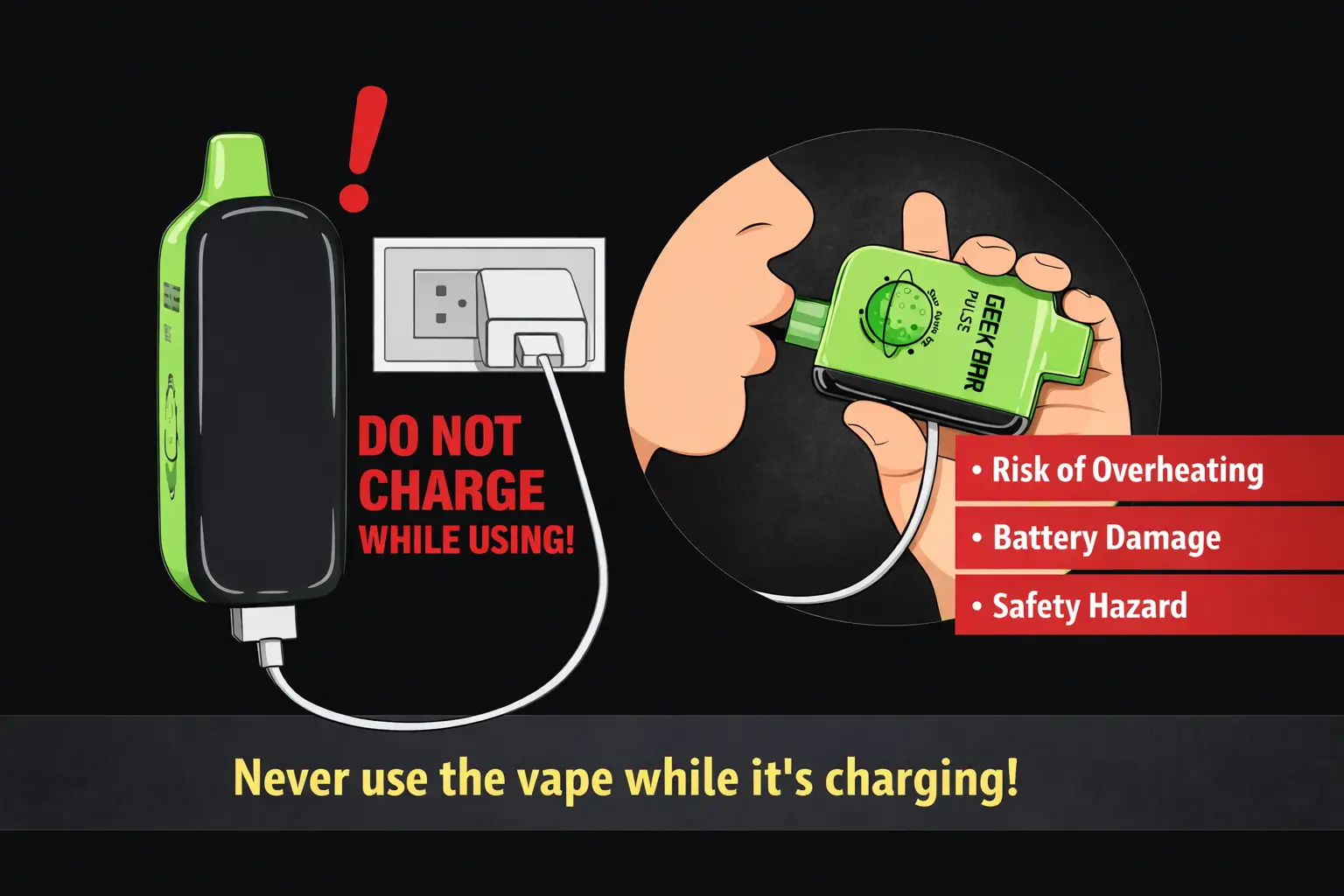
Although some devices can be used while they still have power being sent to them, it is generally recommended to wait until your device has been fully charged before using it. Allowing your device to complete its charging cycle will ensure that you will get optimal performance and that there is no undue wear on the internal battery system.
When Geek Bar Pulse blinking while charging, it means that the battery has low power or that the charging cycle is still active. If your device continues to blink after being connected to a power source then let your device stay connected until it is finished charging.
The charger on the Geek Bar uses USB-C, which is a universal standard for charging many modern devices. You will also find this type of connector on most computers and standard USB charging devices.
Try checking if the charger you are using is working correctly and that any other USB chargers you may have are functioning. Also, look at the area around the USB charging port for dirt or debris. If you find any, clean it out
Some users wonder if they can use the device while it is charging. Although technically possible, it is generally recommended to allow the device to finish charging before use to avoid overheating and to protect battery health.
Provided that all necessary steps have been completed, the charging of your device will be an easy process. Attach the compatible USB-C cable to a reliable power source and leave your device connected until it finishes its charge cycle; this will provide maximum battery life.
Most charging problems are the result of minor problems with either the charging cable, power sources and, in some cases, very small connection issues. Users will want to follow the instructions for charging their devices and take care to follow the suggested guidelines for safe use; this will avoid many common charging problems.