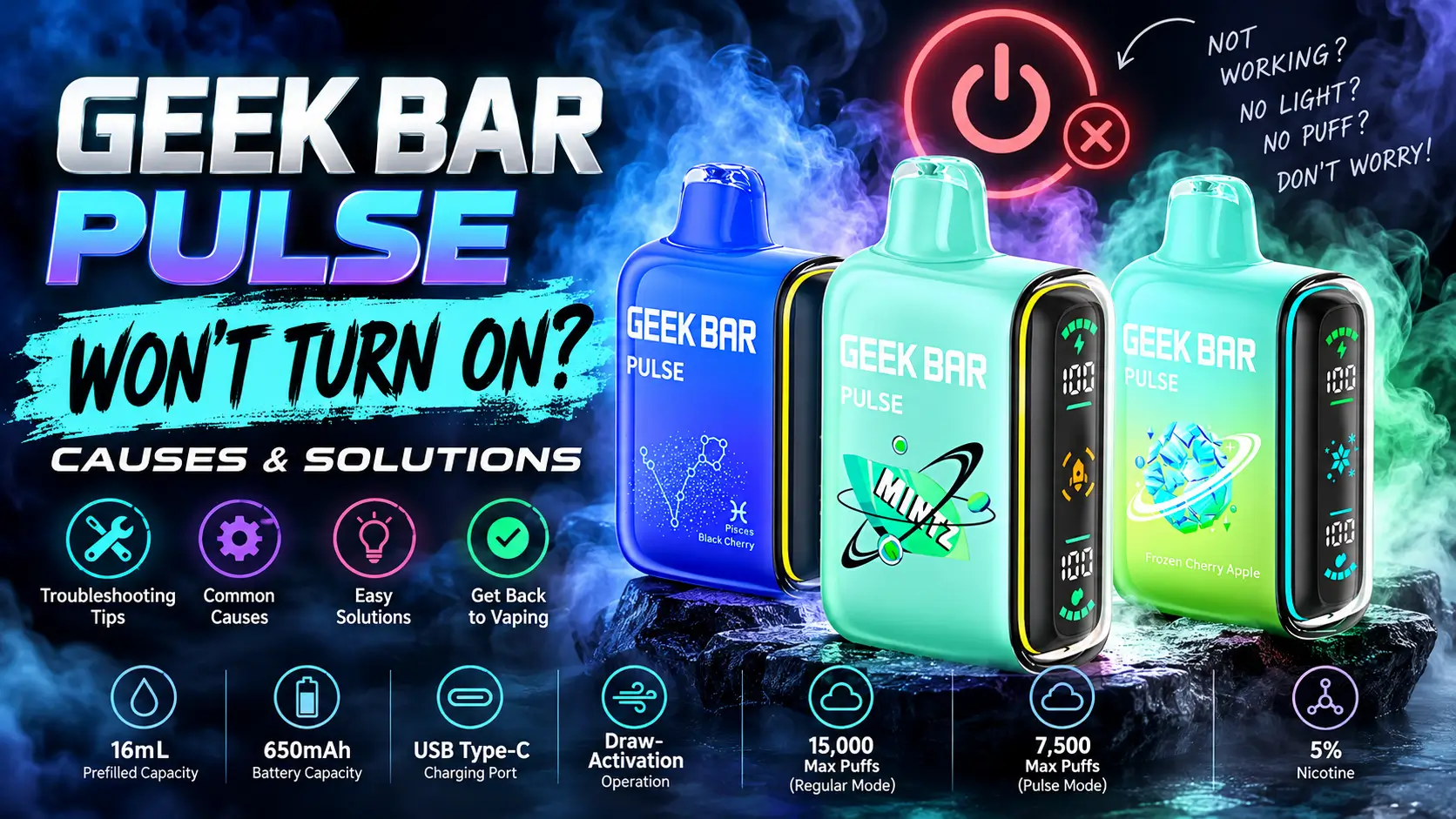
A Geek Bar Pulse won't turn on for one of four reasons almost every time: the power switch is off, the battery is dead, the USB-C port isn't charging, or the auto-draw sensor isn't sensing a pull. None of these need a technician — most get fixed in under two minutes once you know which one you're dealing with.
This guide walks through each cause in order, starting with the fastest checks first, so you can get back to vaping instead of guessing.
📋 Table of Contents
Why Won't My Geek Bar Pulse Turn On?
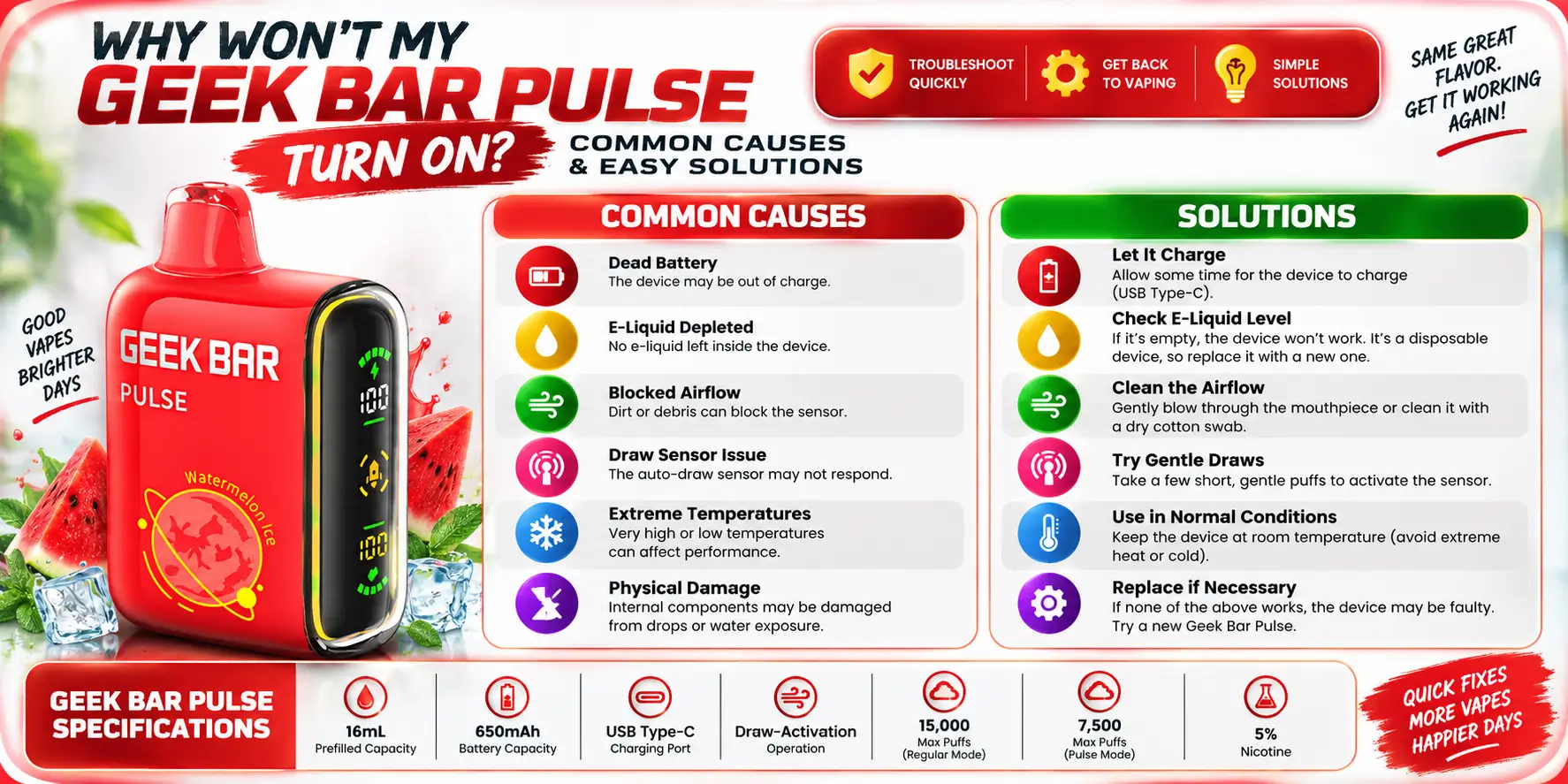
It usually comes down to power, not a broken device. Most "dead" Geek Bar Pulse units are either switched off, low on battery, or mid-charge and briefly unresponsive.
The Geek Bar Pulse runs on draw-activation, meaning there's no fire button to press — you inhale, and the device fires on its own. That design is convenient day to day, but it also means the usual troubleshooting step ("press the button") doesn't apply here, which throws a lot of first-time users off.
Common Reasons Your Geek Bar Pulse Won't Start
In order of how often they actually happen:
- The physical power switch (if your unit has one) is set to off
- The 650mAh battery has drained and needs a USB-C charge
- The device is currently charging and won't fire mid-charge by design
- Condensation or e-liquid has pooled around the airflow sensor
- The pod itself has reached the end of its rated puff life
Signs of a Power or Activation Problem
No LED response at all when you inhale is the clearest sign of a power issue rather than a flavor or airflow issue. If the light flickers but no vapor comes through, that's usually airflow or draw-sensing, not power — jump ahead to the airflow section for that.
Quick rule of thumb: No light, no vibration, nothing at all → check power and battery first. Some light or sound but no vapor → skip to airflow and draw-sensing.
It's also worth ruling out simple handling issues before anything else. Cold temperatures can temporarily slow lithium battery response, so a device left in a car overnight might just need a few minutes at room temperature before it fires normally again. Similarly, drawing too hard or too fast can occasionally confuse the sensor on the first pull after the device has been idle — a second, steadier draw usually clears that up.
Check the Geek Bar Pulse Power Switch
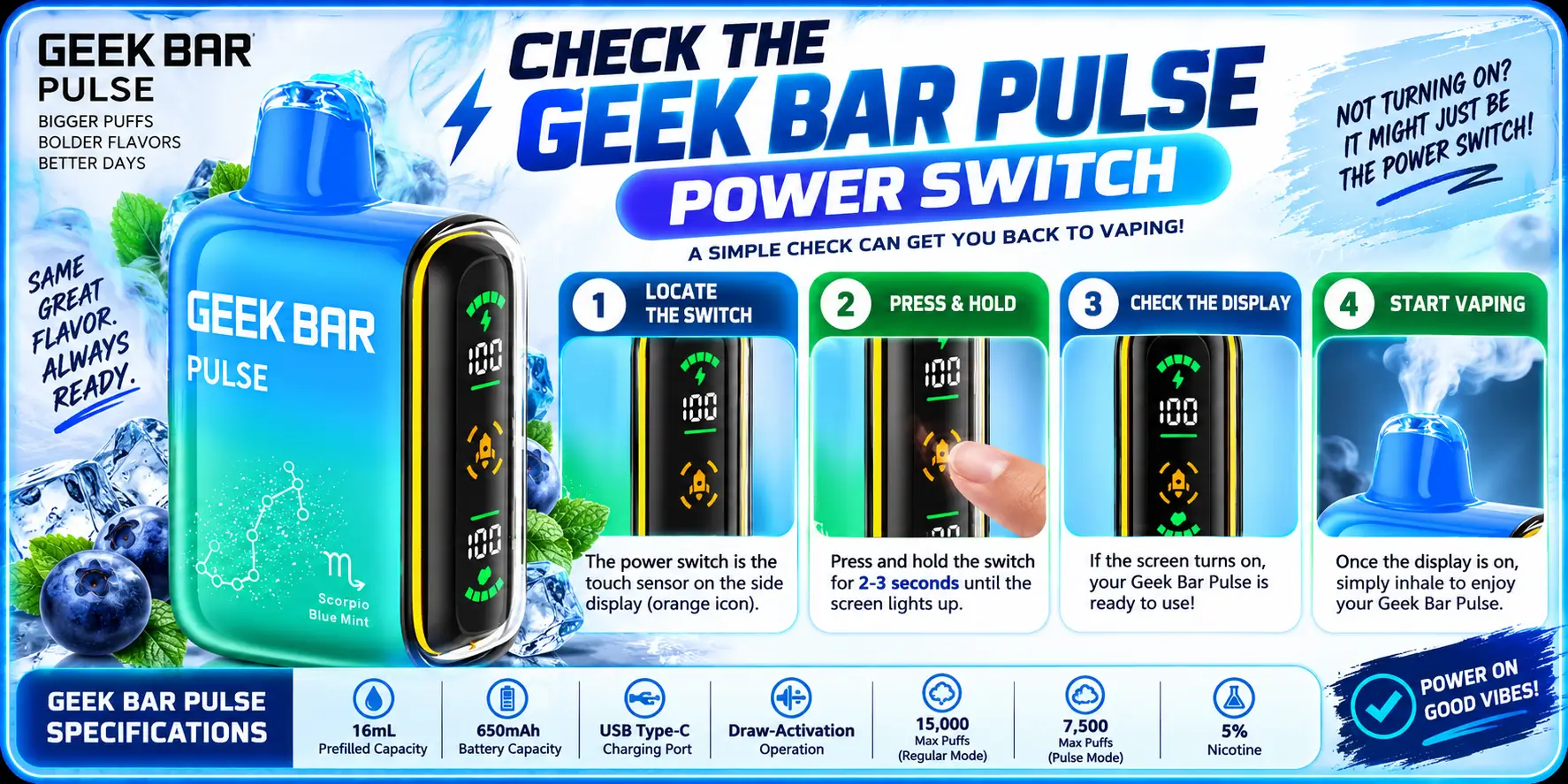
Look for a small slider or button near the base of the device — on models that include one, this needs to be in the "on" position before draw-activation will work at all.
Not every Geek Bar Pulse variant ships with a manual switch, since the line relies primarily on draw-activation. If yours doesn't have one, skip ahead to the battery section.
How the Pulse Power Modes Work
This device runs two output modes: Regular Mode, rated for up to 15,000 puffs, and Pulse Mode, rated for up to 7,500 puffs at higher airflow and intensity. Switching modes doesn't turn the device off — it changes how hard the coil fires per draw.
If you toggled modes recently and the device suddenly feels unresponsive, try a few draws before assuming it's broken. Mode switches occasionally need one or two pulls to recalibrate the sensor.
What the Display or LED Response Means
Our full Geek Bar Pulse screen explained guide breaks down every icon, but as a fast reference: a steady light on inhale means power is fine, a blinking light usually flags low battery, and total silence points to either a dead battery or a switch left off.
Is the Geek Bar Pulse Battery Dead or Low?
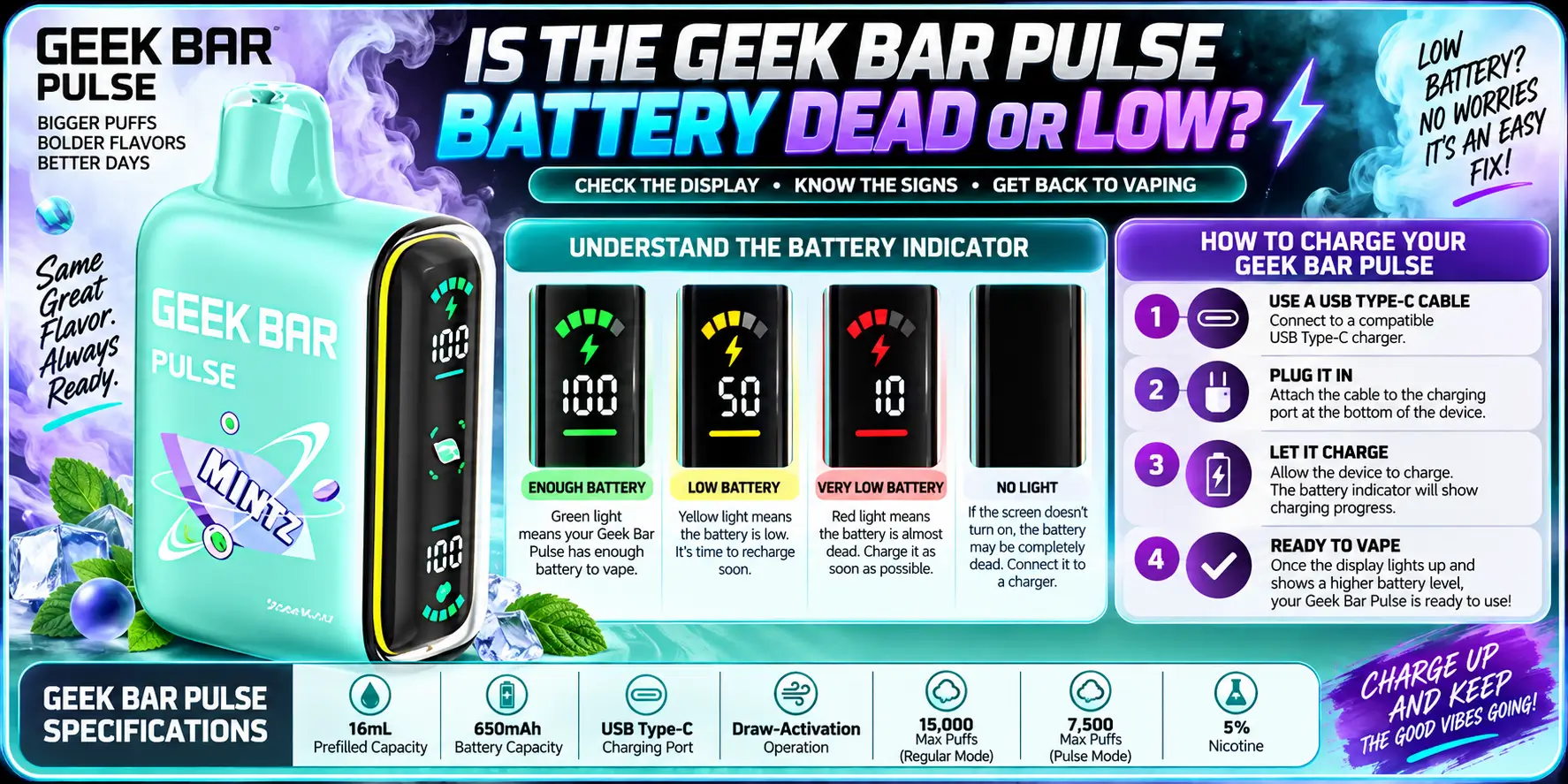
Yes, if the device only worked intermittently before going silent, a drained 650mAh battery is the most likely cause — and it's also the easiest fix, since a full USB-C charge resolves it almost every time.
The 650mAh cell is sized to outlast the 16mL e-liquid tank under normal use, but it still needs regular top-ups, especially at higher output in Pulse Mode.
Signs of a Low Battery
Weaker vapor production, a dimmer or flickering LED, and shorter draws before the device cuts out are the earliest low-battery signs. Catching these early means plugging in before you're left with a device that won't fire at all.
When the Battery May Be Fully Depleted
If there's zero response — no light, no vibration, nothing — for more than a few seconds of holding the device on charge, the battery has likely run all the way down. Lithium batteries at this state sometimes need a few minutes of passive charging before the device even acknowledges the cable, so don't assume the port is broken right away.
For a realistic sense of how long a charge should last you, our how long does Geek Bar Pulse last breakdown covers real-world puff pacing against the 15,000 and 7,500 puff ratings.
Battery drain also isn't always linear. A cell that's been through dozens of partial charge cycles can lose capacity faster near the end of its life than it did early on, which is normal for lithium-ion chemistry in general and not unique to this device. If your Pulse is holding noticeably less charge than it did in its first week, that's the battery aging, not a defect.
How to Check Geek Bar Pulse Charging Issues
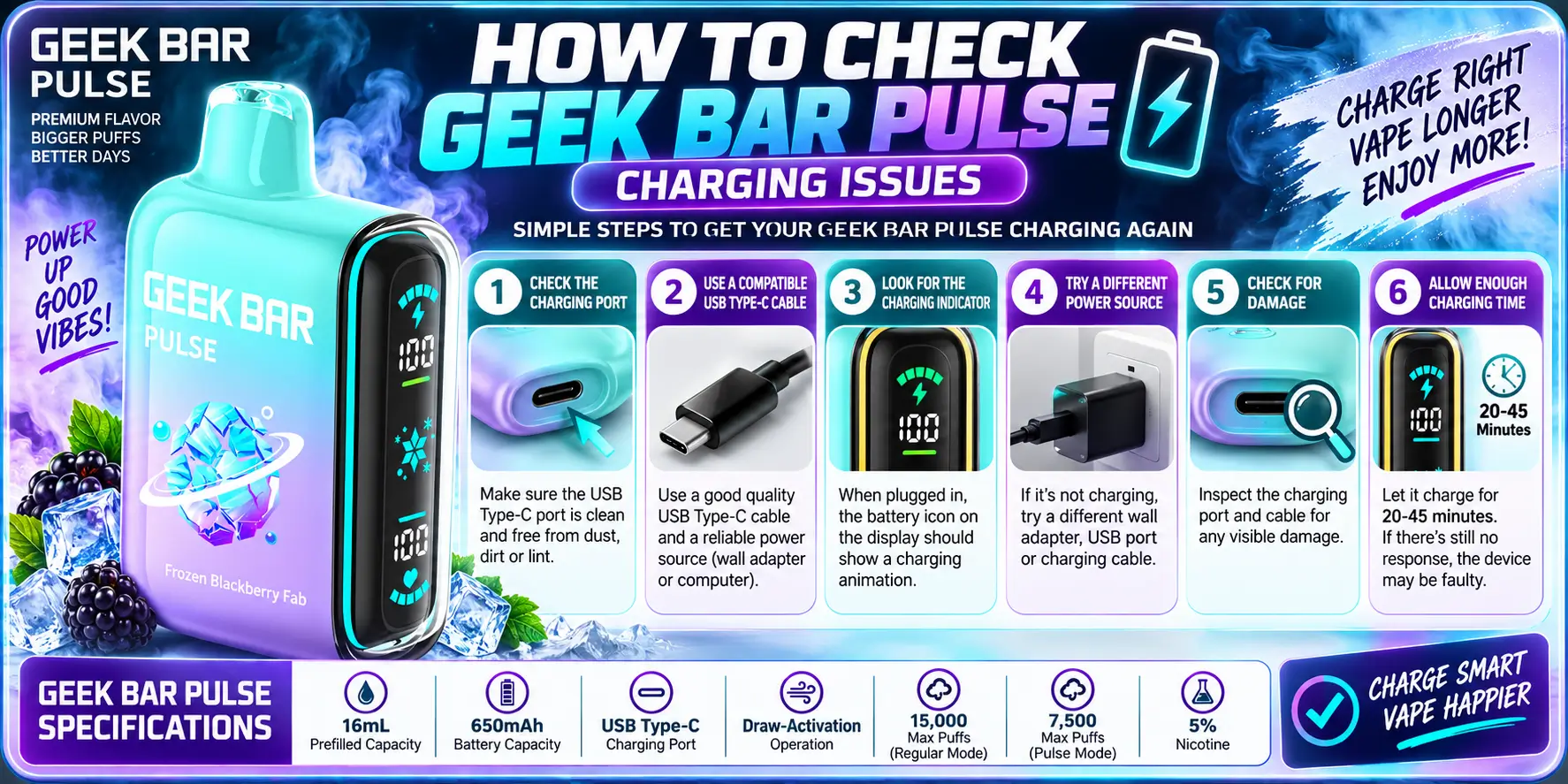
Plug the device in, wait 60 seconds, and watch for an LED response — if nothing happens, the fault is almost always the cable, the port, or debris in the port, not the internal battery cell itself.
USB-C is a fairly forgiving connector, but disposable devices see a lot of pocket lint and dust exposure, which is the number one cause of "charging but not charging" complaints.
Check the USB-C Connection
Try a different USB-C cable and a different wall adapter or laptop port before concluding the device itself has failed. A cable that only carries data and not power, or a worn connector, causes more "dead device" support tickets than actual hardware failure.
Gently inspect the port for lint, fuzz, or a sticky film from e-liquid residue. A dry toothpick or a few seconds of compressed air usually clears it without risking damage.
What to Do If the Device Does Not Respond While Charging
Leave it connected for a full 10–15 minutes even without an LED response — deeply drained lithium cells sometimes take a few minutes before the charging light activates. If there's still nothing after that, try a different power source entirely before writing the unit off.
Our dedicated Geek Bar Pulse charging instructions guide covers optimal charge times and habits that extend the 650mAh cell's working life.
Could Airflow or the Auto-Draw Sensor Be the Problem?
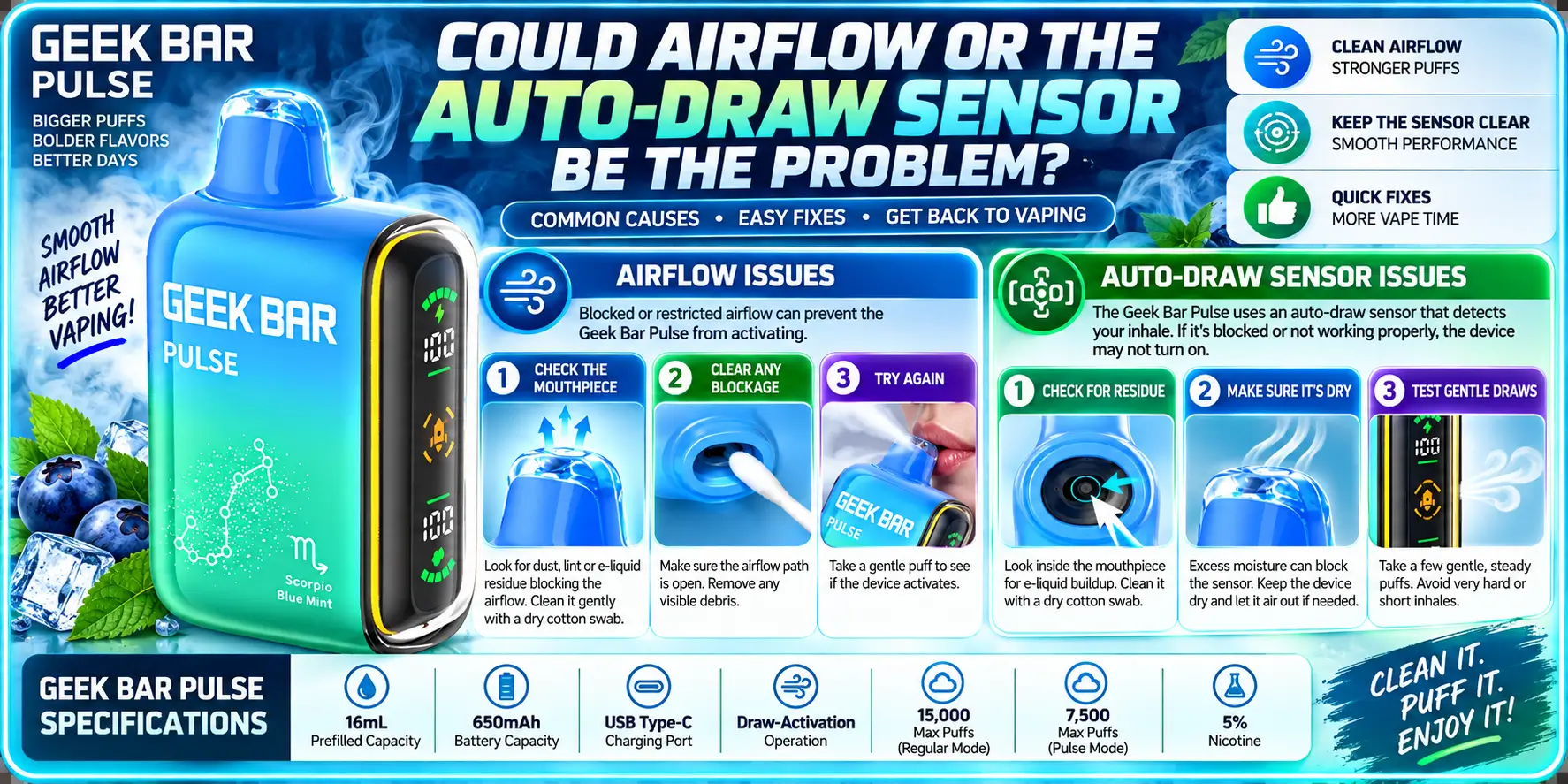
Yes — if the device powers on and shows a light but produces little or no vapor, a blocked airflow path or an unresponsive draw sensor is the more likely culprit, not the battery.
Draw-activated devices rely on a pressure sensor reading the change in airflow when you inhale. Anything that dampens or blocks that airflow can stop the sensor from triggering, even with a full charge.
Check for Airflow Blockage
E-liquid buildup around the mouthpiece or intake vents is the most common blockage, especially once the tank is running low and residual liquid starts pooling. Wipe the mouthpiece and check the small intake holes near the base for visible buildup.
If you've been storing the device on its side or upside down, liquid can migrate toward the sensor — our Geek Bar Pulse storage guide covers the upright storage habits that prevent this.
Why the Device May Fail to Detect a Draw
Very light, short puffs sometimes don't generate enough pressure change for the sensor to register — try a slower, slightly longer inhale before assuming the sensor has failed. This is a common "not hitting" complaint that isn't actually a hardware fault.
If the puff count is close to the device's rated maximum, reduced sensor response can also signal the pod nearing the end of its life rather than a defect. Our Geek Bar Pulse puff count guide explains how puff ratings translate to real usage.
Geek Bar Pulse Full Specifications
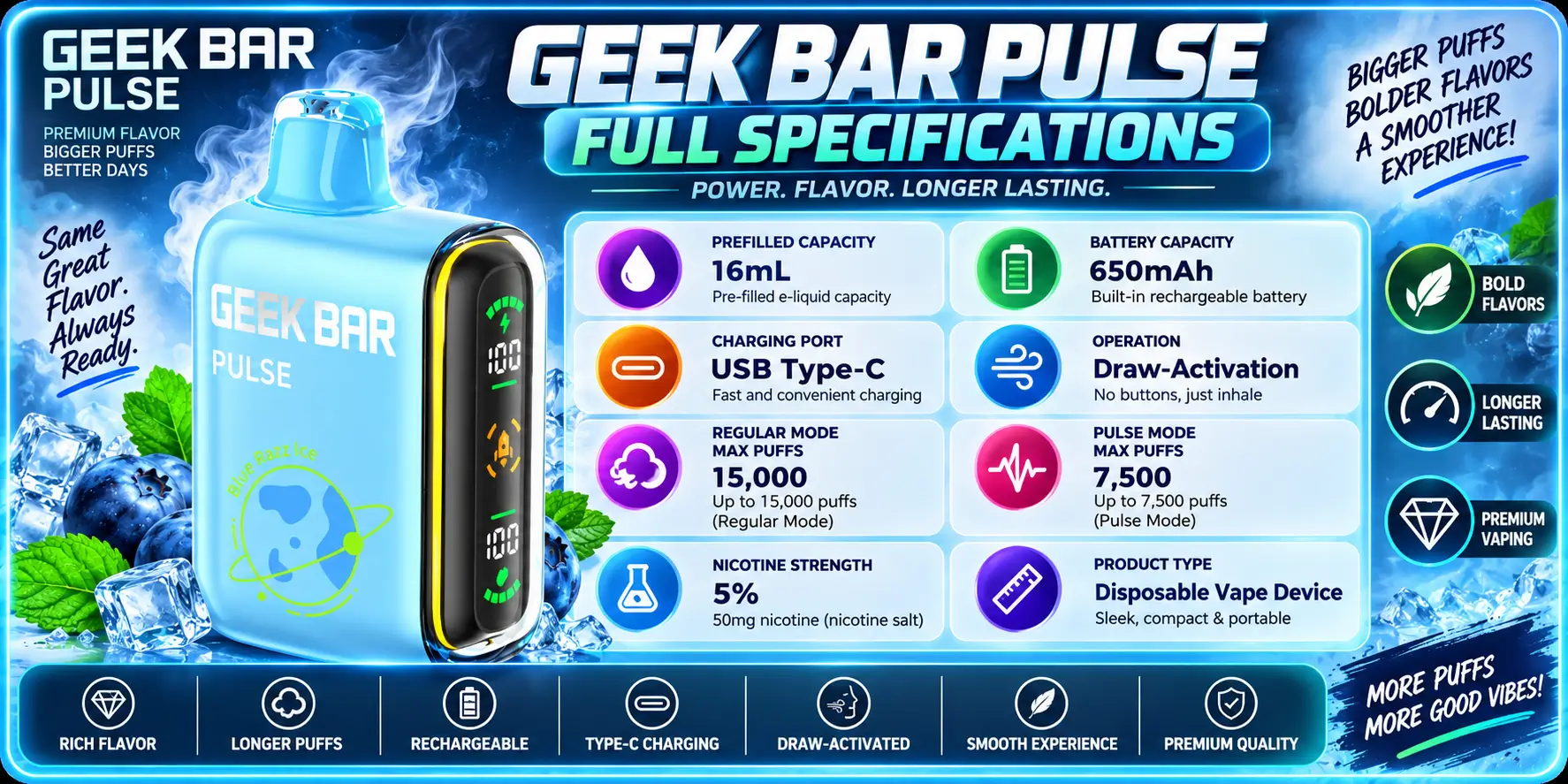
Here's the full spec sheet, since a few of these numbers directly affect the troubleshooting steps above:
| Spec | Detail |
|---|---|
| Prefilled Capacity | 16mL |
| Battery Capacity | 650mAh |
| Charging Port | USB Type-C |
| Operation | Draw-Activation |
| Regular Mode Max Puffs | 15,000 |
| Pulse Mode Max Puffs | 7,500 |
| Nicotine Strength | 5% |
The 650mAh battery is what makes the 15,000-puff Regular Mode rating realistic in the first place — a smaller cell simply couldn't keep pace with a 16mL tank across that many draws. That's also why charging habits, covered above, matter more on this device than on smaller disposables.
For everything else about the broader Geek Bar lineup, our Geek Bar complete guide covers specs, flavors, and buying advice across every current model.
A Few Real Facts Worth Knowing
- Federal law has set the minimum legal purchase age for any vaping or tobacco product, including disposables like the Geek Bar Pulse, at 21 nationwide since December 20, 2019.
- The FDA regulates disposable vapes as tobacco products under the Family Smoking Prevention and Tobacco Control Act, requiring manufacturers to submit products for federal review before marketing them.
- USB-C is a reversible, higher-current connector than the older micro-USB standard, which is part of why most 2026-era disposables, including the Pulse, have standardized on it.
- Lithium-ion batteries like the Pulse's 650mAh cell can appear completely unresponsive after a deep discharge and typically need several minutes of passive charging before showing any LED activity.
- Draw-activated firing relies on a pressure-differential sensor rather than a mechanical switch, which is why airflow blockages can mimic a dead battery even when the cell itself is fully charged.
FAQs
1. Why is my Geek Bar Pulse not turning on at all?
The most common cause is a drained 650mAh battery, followed by a power switch left in the off position on models that include one. Plug the device into a USB-C charger for at least 10–15 minutes before assuming it's faulty, since deeply drained lithium cells often show no LED response for the first few minutes of charging.
2. How do I know if my Geek Bar Pulse is charging?
Most units show a light near the base or mouthpiece while connected to power. If you see no response after plugging in, try a different USB-C cable and power source before concluding the port or battery has failed, since a bad cable is a far more common cause than internal battery damage.
3. Why does my Geek Bar Pulse have power but won't produce vapor?
This points to airflow or draw-sensing rather than the battery. E-liquid buildup around the mouthpiece or intake vents can block the sensor from registering a draw, and a slower, longer inhale often resolves it if the blockage is minor rather than a hardware fault.
4. How many puffs does the Geek Bar Pulse get before it dies?
Up to 15,000 puffs in Regular Mode or up to 7,500 in Pulse Mode, based on the device's 16mL prefilled capacity and 650mAh battery. Real-world totals vary with draw length and how often you switch between the two modes.
5. Can I fix a Geek Bar Pulse that won't turn on, or should I replace it?
Most non-response issues trace back to charging, power switches, or airflow blockage, and are fixable in a few minutes using the steps above. If the device still shows zero response after a full charge cycle and a cleaned airflow path, it's likely reached the end of its usable life and is time to replace.
Ready to restock? You can shop Geek Bar Disposable through our top trusted partner, Vapor Boss — 100% authentic stock with fast US shipping.
WARNING: This product contains nicotine. Nicotine is an addictive chemical. Sales and use are strictly prohibited for individuals under 21 years of age.