

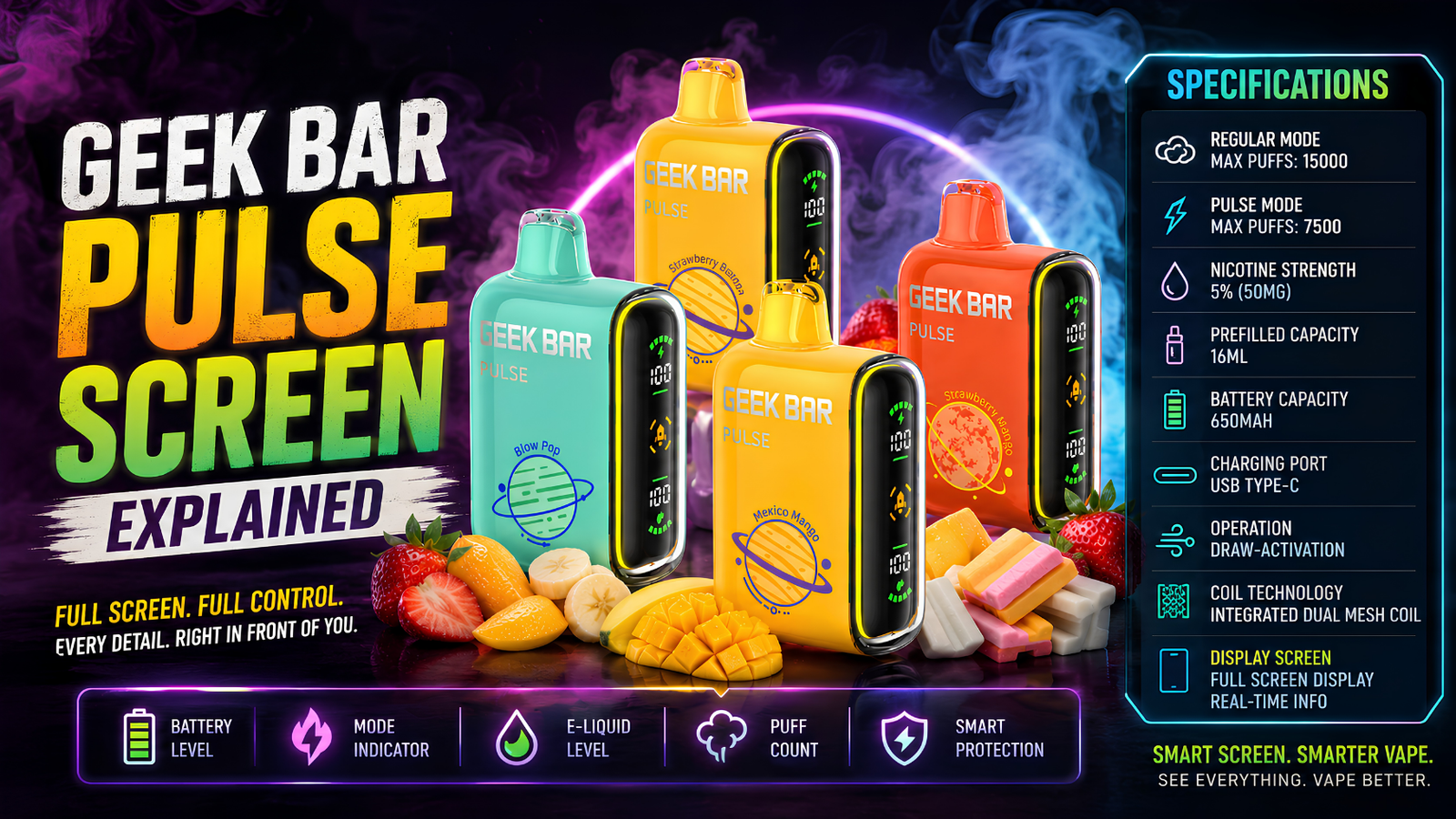
The Geek Bar Pulse screen explained in one line: it's a small LED display that shows battery level, remaining e-liquid, and puff mode through a mix of icons, numbers, and colors. Once you know what each icon and color stands for, the screen stops being decorative and starts being a real usage gauge.
This guide breaks down every icon, every color state, and what to do when the screen throws up something unexpected — plus how it ties into puff count, battery life, and charging. For the full rundown on the entire Pulse lineup, our Geek Bar Guide is the best starting point.
📋 Table of Contents
The Geek Bar Pulse screen is a built-in LED display that replaces the simple blinking light older disposables used. It matters because it turns guesswork — "is this thing almost dead?" — into an actual readout you can glance at.
Older single-use vapes only had a light that blinked when the battery or e-liquid ran low, which told you almost nothing until it was too late. The Pulse screen instead shows a live battery percentage or bar, a puff-mode indicator, and in some models an e-liquid estimate, all in one view.
This shift matters for a simple reason: disposable vapes with rechargeable batteries only make sense if you actually know when to recharge. A screen that shows real data lets you top up before you're caught with a dead device mid-day, rather than after.
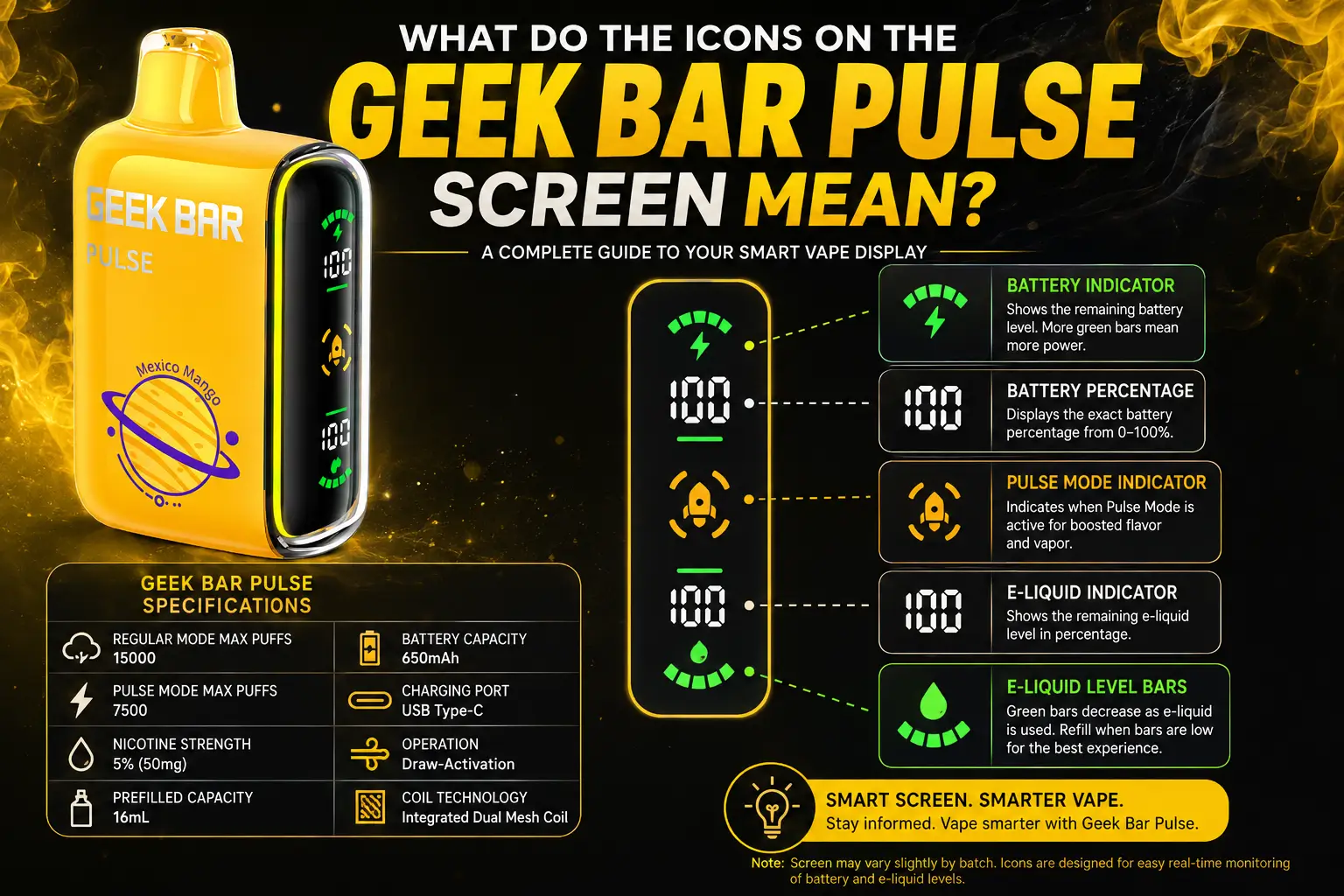
Three icons show up most often on Geek Bar Pulse screens: a battery icon, an e-liquid drop icon, and a puff-mode symbol. Each one maps to a specific stat, not a vague warning.
The battery icon is the one you'll check most. It's usually shown as a small battery outline that fills or empties, sometimes paired with a percentage number on newer models like the Pulse X and Pulse X2.
The e-liquid drop icon (on models that include it) reflects roughly how much juice is left in the tank, based on usage tracked by the chip inside the device — not a physical liquid-level sensor, so treat it as an estimate rather than an exact reading.
The mode icon shows which puff mode is active. On dual-mode devices like the Pulse X, this toggles between Regular Mode and Pulse Mode, so you can confirm at a glance which one you're currently pulling from.
No — icon sets vary by model generation. Entry-level Pulse devices tend to show just a battery indicator, while the Pulse X and Pulse X2 add e-liquid and mode icons on their 3D curved LED screens.
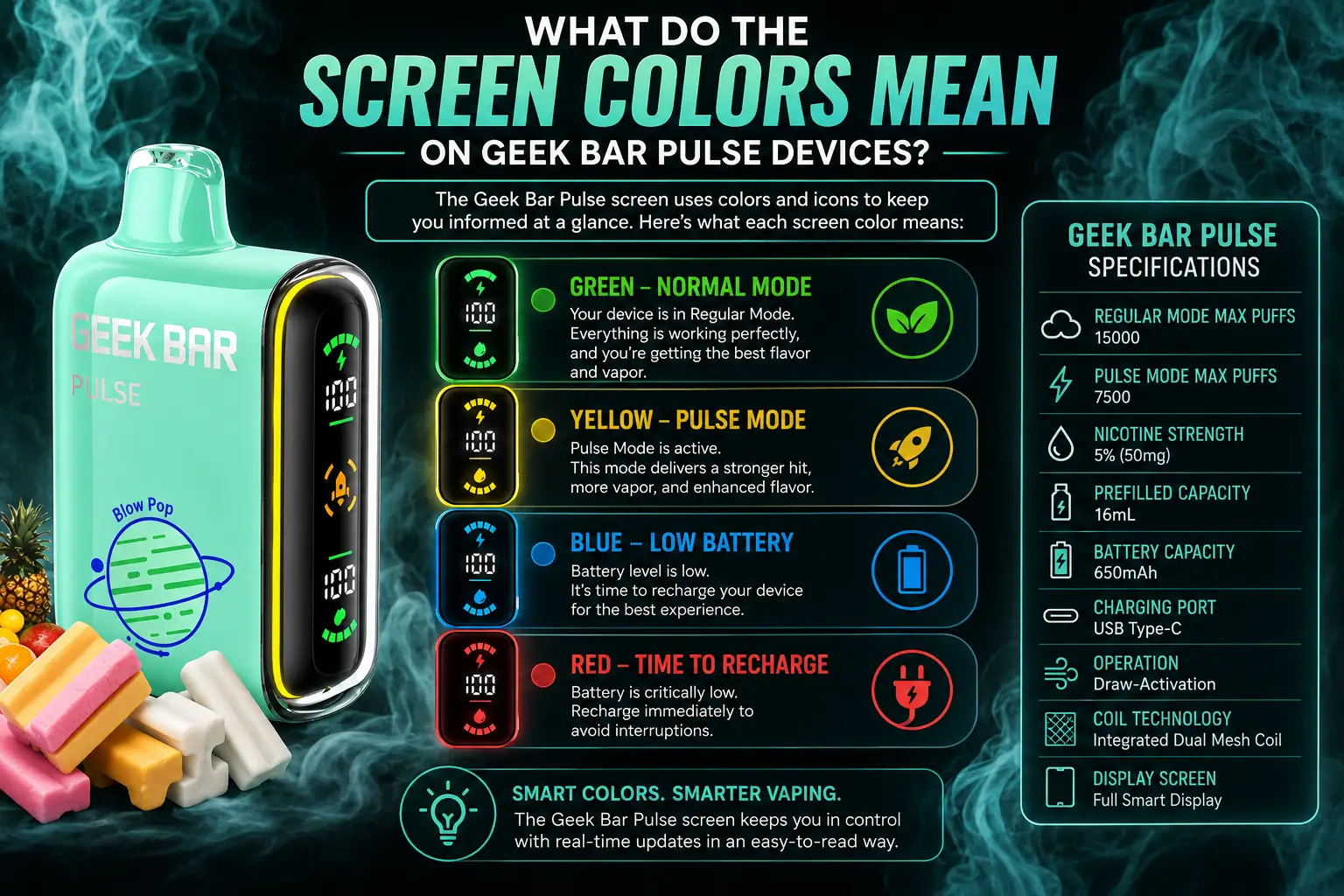
Screen colors on Geek Bar Pulse devices generally follow a green-yellow-red pattern: green for healthy battery and e-liquid levels, yellow or amber as a mid-range warning, and red when it's time to recharge or the device is nearly finished.
Green typically covers anywhere from full down to around 50-60% remaining, depending on the model's calibration. It's the "don't worry about it" zone.
Yellow or amber is the heads-up zone. It doesn't mean the device is about to die, but it's a reasonable point to plug in if you're heading somewhere you won't have access to a charger.
Red is the clearest signal on the screen. On most Pulse models, a red battery indicator means charge now, and a red or flashing e-liquid icon (where present) usually means the tank is close to empty regardless of battery level.
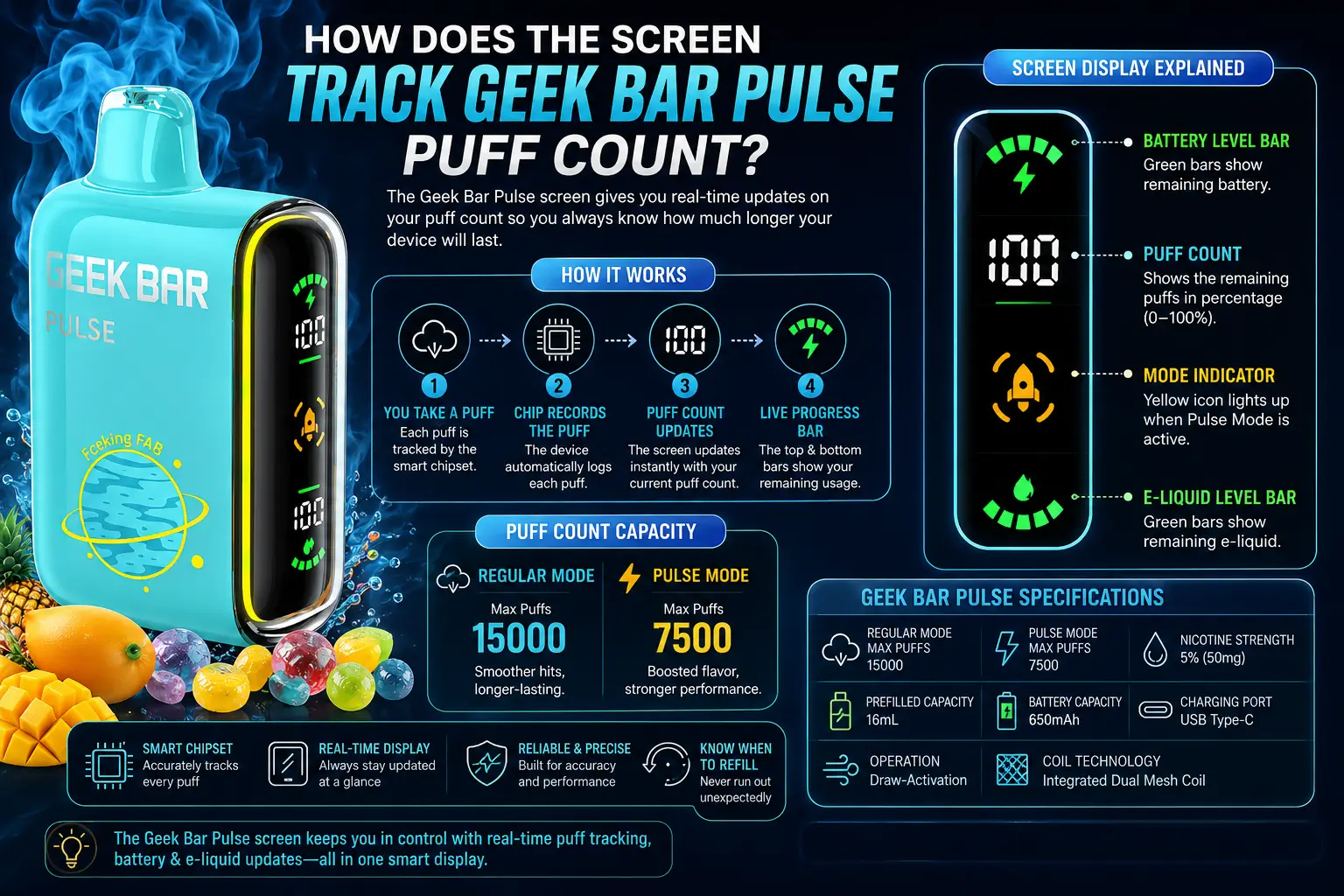
The screen doesn't usually show a raw puff number — instead, it estimates remaining life as a percentage or bar based on the device's rated Geek Bar Pulse puff count. That rated figure is the ceiling the screen is measuring against.
Internally, the chip tracks draw activations and estimates how much of the rated puff count has been used, then reflects that as part of the e-liquid or battery display. It's an approximation, not a literal counter ticking up with every pull.
That's worth knowing because two people vaping the same model can see different screen behavior at similar puff totals — draw length and frequency both affect how the estimate lands.
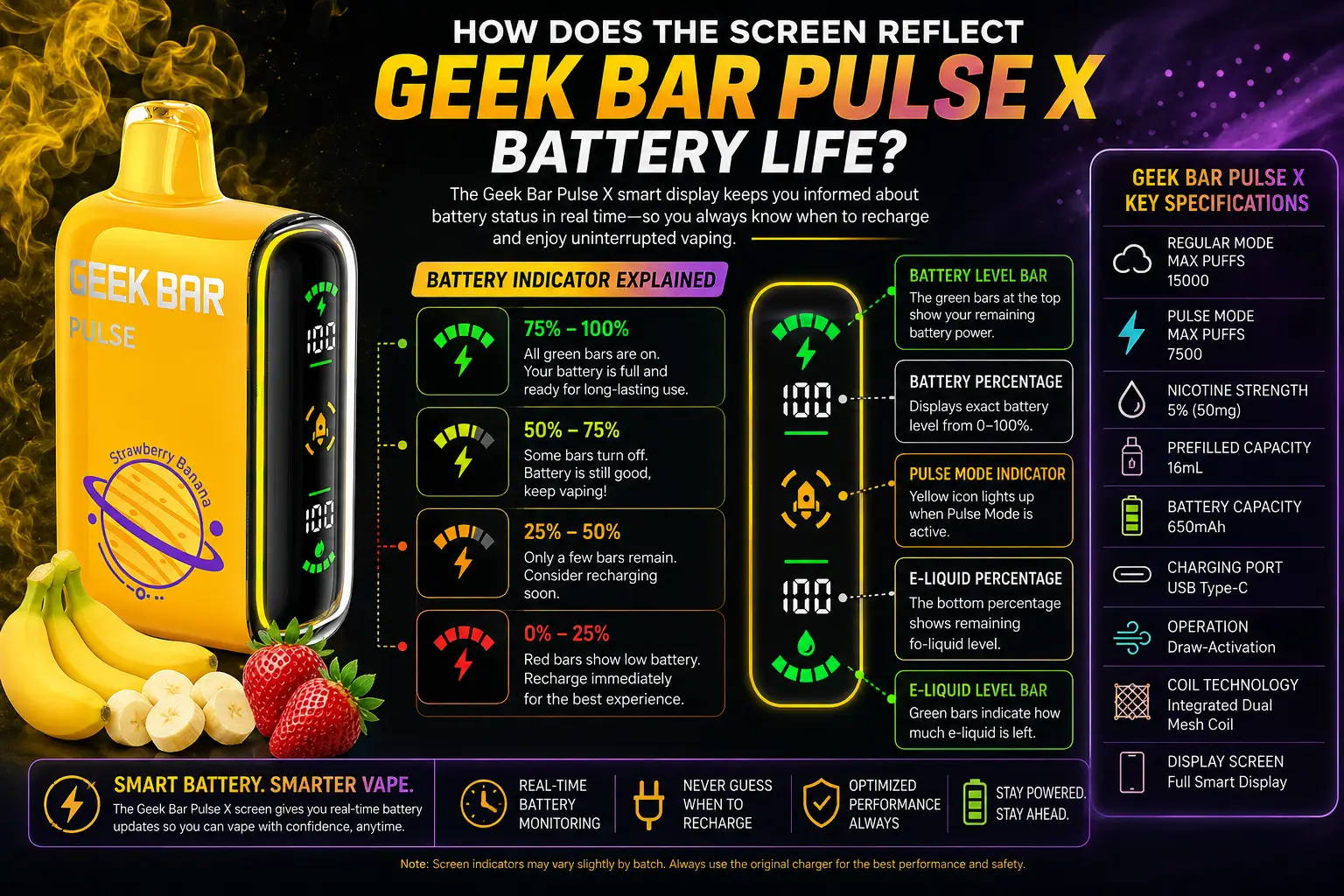
On the Pulse X specifically, the screen's battery icon is tied directly to real-time Geek Bar Pulse X battery life data pulled from the device's AI Power Adjustment system, which also manages airflow and wattage on the fly.
Because the Pulse X supports two modes — Regular and Pulse — the battery drains at different rates depending on which one you're using. Pulse Mode draws more power per pull, so the screen's battery percentage can drop faster during heavier sessions.
Watching that battery icon rather than assuming a fixed daily charge cycle is the more reliable way to manage a Pulse X, especially if you switch between modes often.
The honest answer to how long does Geek Bar Pulse last depends on your draw habits, but the screen gives you a running estimate rather than a fixed countdown — treat it as a guide, not a guarantee.
Rated puff counts are based on standardized testing conditions in a lab, not your specific pull length or frequency. Someone taking short, light draws will typically see the screen's remaining-life indicator drop more slowly than someone taking long, deep pulls.
A practical habit: check the screen once a day rather than only when it flashes red. That gives you a sense of your personal drain rate instead of relying purely on the device's built-in estimate.
If the battery and e-liquid icons both look fine but you're getting weak or no vapor, the screen readout and the actual hit aren't always perfectly in sync — this is one of the more common reasons behind a Geek Bar Pulse not hitting complaint.
A normal-looking screen with a weak hit usually points to a coil issue, a clogged airflow path, or condensation buildup rather than a power or e-liquid problem — since those are exactly the things the screen isn't designed to detect.
Before assuming the device is faulty, try a few short, sharp draws to clear any liquid pooling on the coil, and check that the airflow vents aren't blocked. If the screen shows healthy stats and the issue persists, it's more likely a hardware fault than a battery or e-liquid problem.
The screen is your cue for when to follow the device's Geek Bar Pulse charging instructions — once the battery icon hits yellow or red, that's the practical signal to plug in via USB-C.
Charging behavior also shows up on the screen: many Pulse models animate or pulse the battery icon while actively charging, then settle into a solid full-battery display once charging completes.
If the screen doesn't light up at all when plugged in, that's usually a cable or port issue rather than a dead battery — worth trying a different USB-C cable before assuming the worst.
Not every Pulse device has the same screen. Here's how the display features stack up across the current lineup:
| Model | Display Type | Icons Shown | Color Indicators |
|---|---|---|---|
| Geek Bar Pulse | Basic LED Screen | Battery only | Green / Red |
| Geek Bar Pulse X | 3D Curved LED Screen | Battery, e-liquid, mode | Green / Yellow / Red |
| Geek Bar Pulse X2 | 3D Curved LED Screen | Battery, e-liquid, puff estimate | Green / Yellow / Red |
| Geek Bar Mate 60K | Digital Display | Battery, e-liquid | Green / Yellow / Red |
The trend across newer releases is clear: more icons, more granular color states, and a shift from a single battery light toward a full mini dashboard.
A quick glance once or twice a day is enough for most people — you don't need to monitor the screen constantly, just check it before you leave the house and again in the evening.
Checking in the morning tells you whether you're starting the day on a full or partial charge, which matters if you know you won't have a charger handy later. An evening check tells you whether it's worth topping up overnight versus waiting another day.
People who vape heavily throughout the day — closer to the higher end of typical daily puff totals — will naturally want to check more often, since both the battery and e-liquid estimates move faster under that kind of use.
No. Glancing at the screen doesn't meaningfully affect battery drain — it activates briefly on draw or a light tap, then goes idle again. The battery drain comes from actual vapor production, not from how often you look at the display.
A few screen patterns come up often enough that they're worth recognizing on sight, rather than treating every unusual display as a malfunction.
A battery icon that jumps back up slightly after a long draw session isn't a bug — some devices briefly show a small rebound as internal voltage stabilizes once you stop pulling. It's a normal part of how lithium batteries report charge, not a sign the device is broken.
A screen that dims noticeably in cold weather is also expected behavior. Battery-powered LED displays generally perform less efficiently in low temperatures, so a slightly dimmer readout in winter conditions isn't necessarily a low-battery warning on its own.
Finally, a screen that resets to a full display after being left untouched for a long stretch usually just means the device went into a low-power standby state and is now waking back up — worth confirming with an actual charge check rather than assuming it's an error.
Yes — spending five minutes learning what each icon and color means saves you from the two most common disposable vape frustrations: getting caught with a dead battery and mistaking a coil issue for an empty device.
Once you know the difference between a yellow "charge soon" state and a red "charge now" state, you can plan charging around your day instead of reacting to a dead device at the worst possible moment.
A flashing red light or icon almost always means the battery is critically low and needs to be charged right away. On some models, a flashing red e-liquid icon instead signals the tank is nearly empty, so it's worth checking both indicators before assuming it's purely a charging issue.
Color thresholds vary slightly by model, and the display can also shift color mid-charge as the battery fills back up. If the color seems inconsistent with how much you've used the device, a fresh full charge usually recalibrates the reading accurately.
Not precisely — the screen shows an estimated percentage or bar based on the device's rated puff count and your usage pattern, not a literal countdown. Draw length and frequency both affect how accurate that estimate feels in daily use.
Partially. Authentic Pulse devices use consistent icon sets and color logic across each model generation, so screens that look glitchy, mislabeled, or behave erratically compared to official product photos can be a red flag worth investigating further before you trust the device.
Try a different USB-C cable and charging port first, since a blank screen is more commonly a connection issue than a dead unit. If the screen still won't light up after that, the device likely has a hardware fault and should be treated as defective rather than simply low on charge.
For more troubleshooting beyond the screen itself, our complete Pulse resource covers the full range of common issues across the lineup.
Geek Bar Pulse — Disposable Vape
🛒 Where to Buy Online
Choose from our verified partner stores — all carry 100% authentic Geek Bar Pulse products sourced directly from official US distributors.


Twelve Tribes
Wide Selection • Best Prices


Raven Route
Fast Delivery • All Flavors


Zippyzz
Quick Shipping • Great Deals
🔒 All partner stores are verified, age-gated, and ship only to legal US states. Purchases are made directly with the retailer — not geekbarpulse.com.
⚠️ Must be 21+ to purchase.