

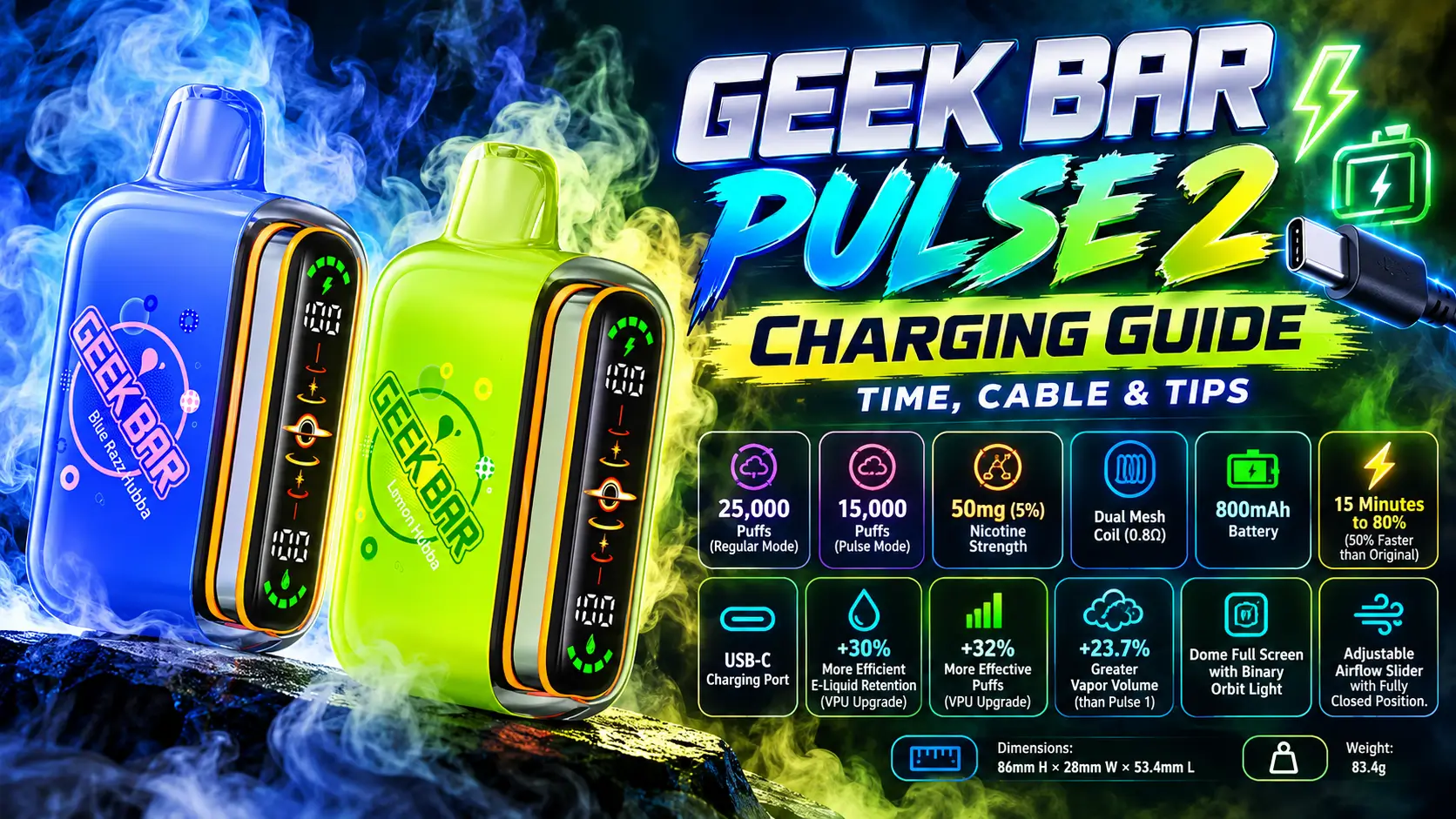
This Geek Bar Pulse 2 charging guide covers everything you need to plug in with confidence: where the port sits, which cable works, how long a full charge takes, and what the display is telling you. The Geek Bar Pulse 2 charges over USB-C and reaches about 80% in roughly 15 minutes.
Charging sounds like the most boring part of owning a vape. It also decides whether your device is ready when you are, so a few minutes of know-how saves a lot of "why is this dead again?" moments.
📋 Table of Contents
1. How Do You Charge a Geek Bar Pulse 2?
2. How Long Does Geek Bar Pulse 2 Take to Charge?
3. What USB-C Cable Should You Use?
4. Can You Overcharge Geek Bar Pulse 2?
5. Can You Use a Fast Charger?
6. What Does the Charging Indicator Mean?
7. Geek Bar Pulse 2 Charging FAQs
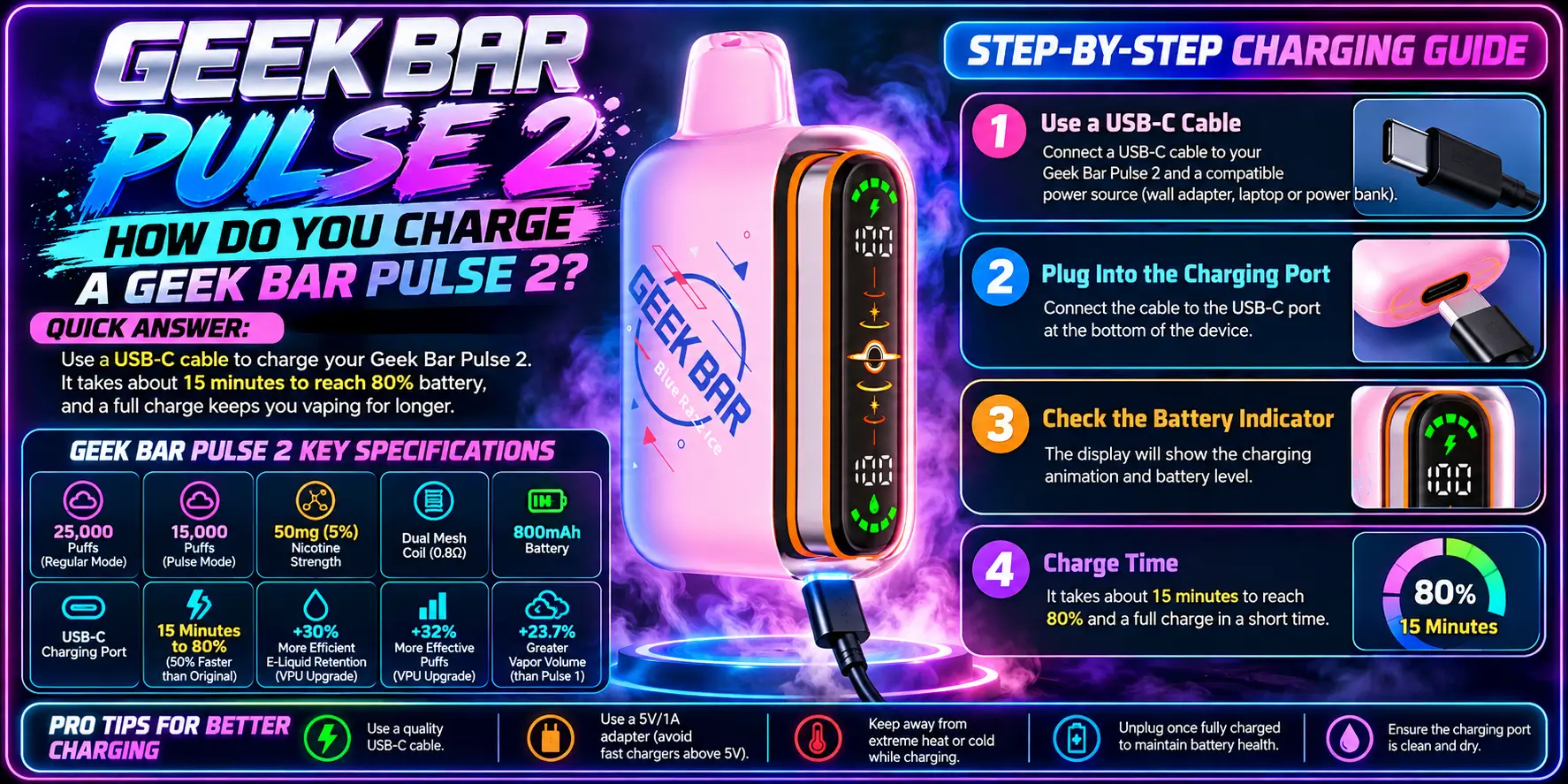
Plug a USB-C cable into the charging port on the device, then connect the other end to a USB power source. That's the whole process. No special dock, no proprietary plug.
The port is the same USB-C standard used by most modern phones, tablets, and laptops. If you already own a spare cable, you probably already own the charger. Here's how to do it step by step.
The USB-C port sits on the bottom edge of the device, opposite the mouthpiece. It's a small, oval-shaped slot, and you'll spot it in seconds.
Before you plug anything in, glance inside the port. Pocket lint is the number one enemy of a clean connection, and a quick puff of air or a wooden toothpick clears it. Skip metal tools, since they can scratch the contacts.
Push the cable connector straight in until it seats firmly. USB-C is reversible, so you can't insert it upside down. Then connect the other end to a wall adapter, computer port, or power bank.
Check the display after a moment. If it reacts, the connection is good. If nothing happens, unplug, re-seat the cable, and try a different cable or power source before assuming the device is faulty.
Keep the device upright and on a hard, cool surface while it charges. A couch cushion traps heat, and heat is never great for lithium-ion batteries.
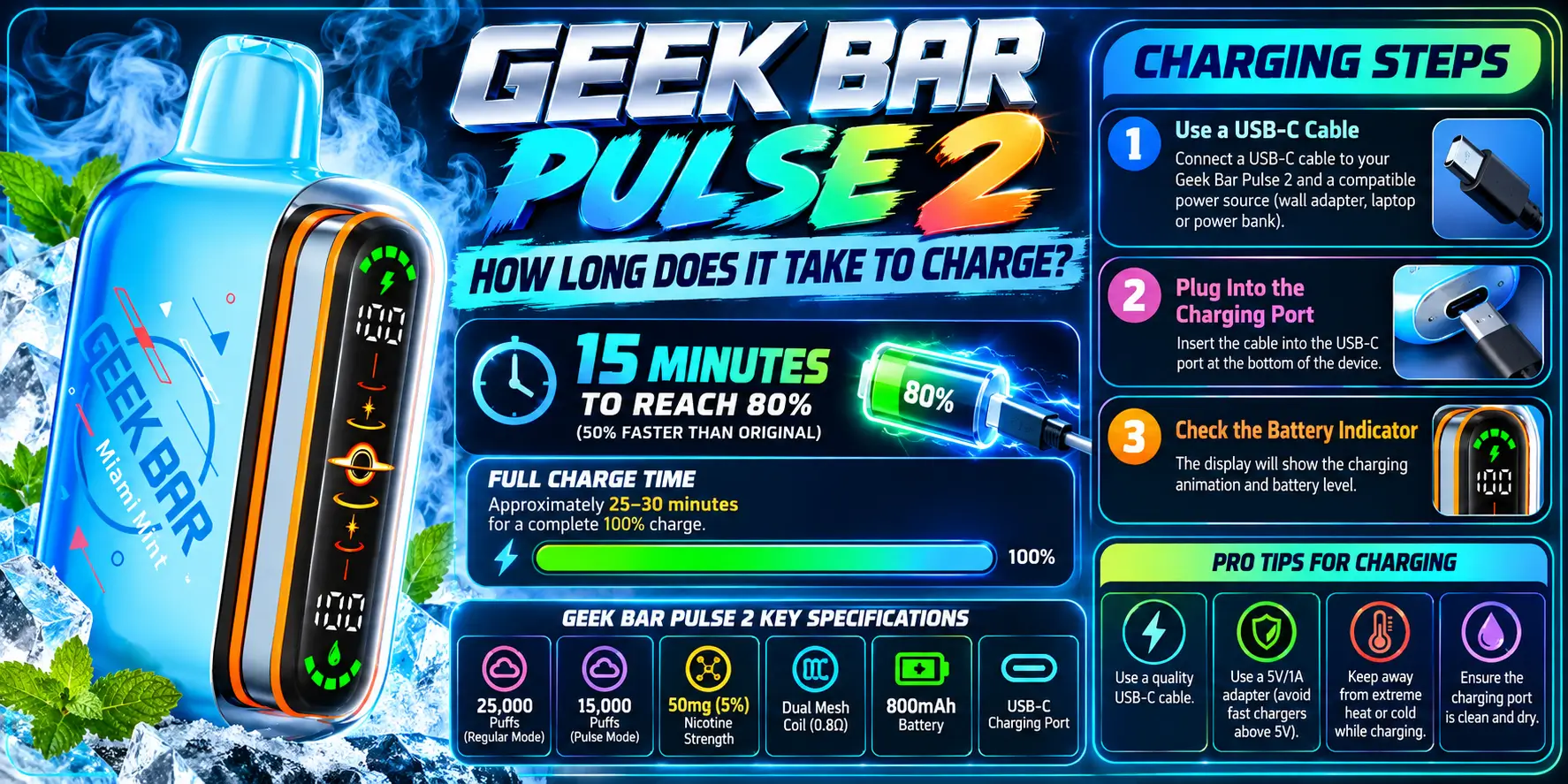
The Pulse 2 reaches about 80% in roughly 15 minutes, which is 50% faster than the original Pulse. A full 100% takes a little longer, since the last stretch of any lithium-ion charge slows down.
That 15-minute figure comes from the product specifications, and real-world times shift with your cable, power source, and starting battery level. Treat it as a strong guideline rather than a stopwatch promise.
Lithium-ion batteries charge fastest when they're low and slow down as they approach full. That's why a phone jumps from 10% to 80% quickly and then crawls to 100%. The Pulse 2's 800mAh battery follows the same pattern.
In practice, this means a quick 15-minute top-up gets you most of the way there. If you're heading out the door, unplugging at 80% is a perfectly reasonable move.
For a deeper look at how long one charge actually lasts once you unplug, see our Geek Bar Pulse 2 Battery Life breakdown.
Here's a simple routine that works for most people: plug in during a natural pause, like breakfast or a commute, and unplug when you're ready to go. Short, frequent top-ups suit lithium-ion cells better than rare, deep drains, and they keep the device ready whenever you reach for it.
A few things can stretch charging time:
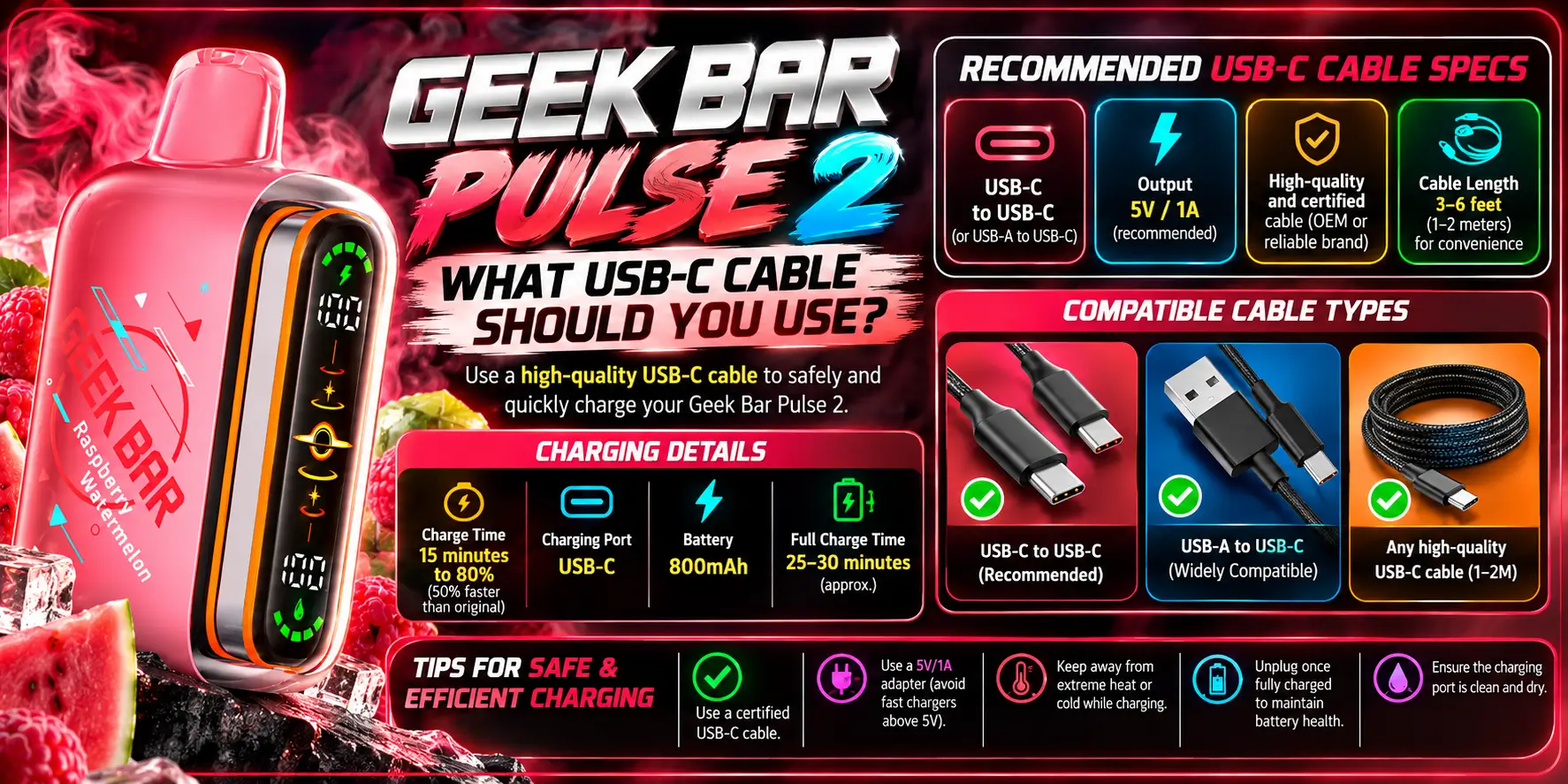
Any decent USB-C cable that supports charging will work. Use a cable from a reputable brand, ideally the one that came with a phone or laptop you trust, and avoid frayed or bent cables.
USB-C is a connector shape, not a guarantee of quality. Two cables can look identical and perform very differently, so a little pickiness pays off here.
The Pulse 2 uses a standard USB-C port, so it works with the USB-C cables you already have around the house. That includes cables for Android phones, tablets, headphones, and most modern laptops.
Older USB-A-to-USB-C cables work too. You'll plug the USB-A end into a wall adapter or computer, and the USB-C end into the device. Both ends of a USB-C-to-USB-C cable also work fine, as long as your power source supports it.
The main compatibility risk is a damaged or ultra-cheap cable. Gas station bargain cables sometimes skimp on internal wiring, which leads to slow or unstable charging.
Any USB-C cable that carries power will charge the device, whether it's sold as a charging cable or a data cable. Data cables carry power and information, while some cheap "charge-only" cables carry power alone. For the Pulse 2, both types do the job because you only need power.
Where cables differ is build quality and current capacity. A thick, well-made cable delivers power more reliably than a thin one, even though both fit the same port.
| Power Source | Charging Speed | Best For |
|---|---|---|
| Wall Adapter | Fastest and most consistent | Everyday charging at home |
| Laptop / Computer USB Port | Slower on older ports | Desk use and work days |
| Power Bank | Varies by bank quality | Travel and emergencies |
| Car USB Charger | Moderate | Road trips and commutes |
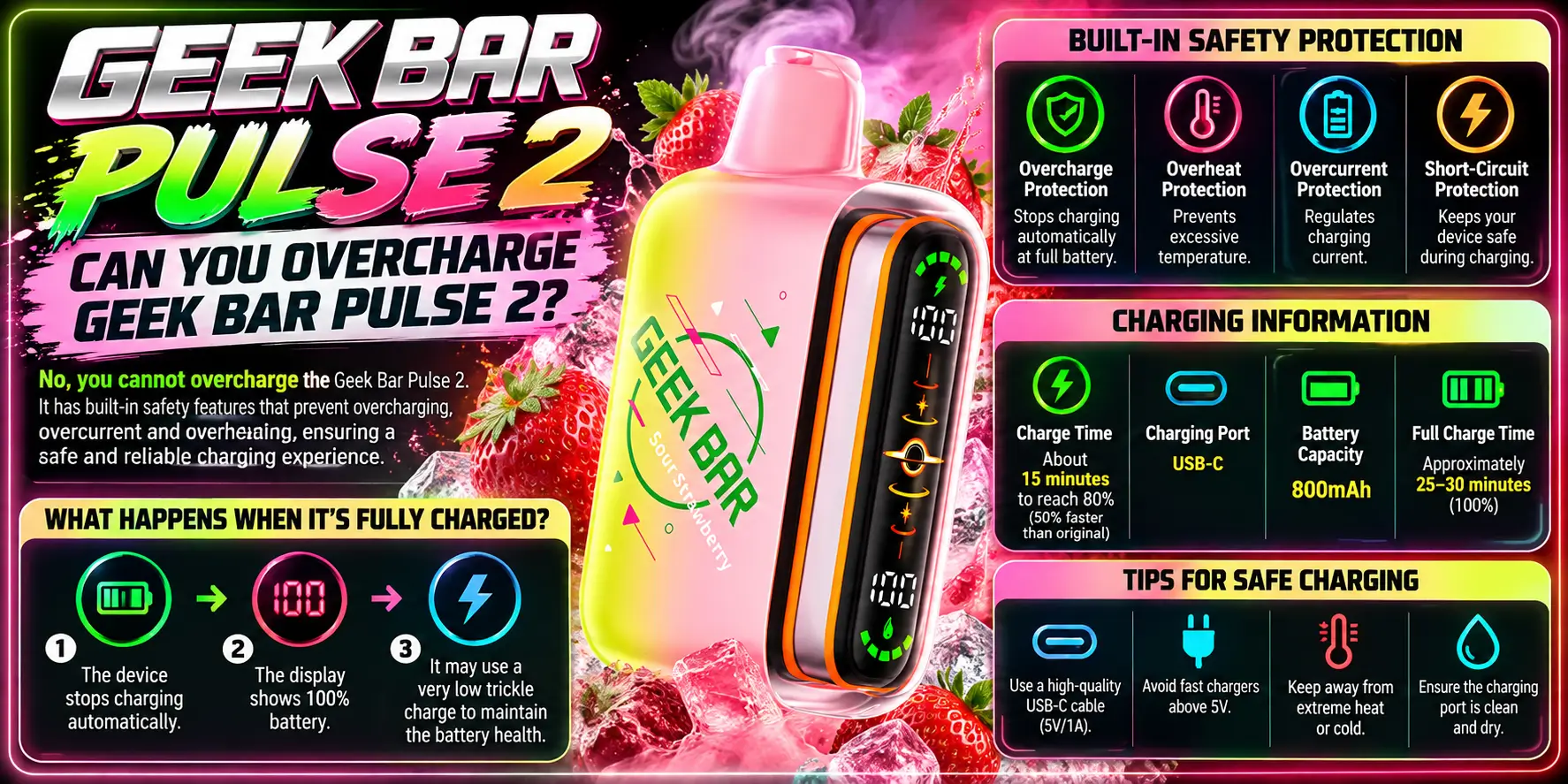
Modern lithium-ion devices generally include charge-control circuitry that stops charging once the battery is full, so leaving it plugged in briefly won't cause trouble. Still, unplugging when it's done is the smarter habit.
Think of it like a phone left on the nightstand. It usually survives just fine, but constant heat and full-charge time slowly wear a battery down over months.
Here's the practical rule: charge it, then unplug it. Don't leave the device charging unattended overnight, on soft bedding, or in a hot car. Heat is the real risk, not the extra ten minutes.
Temperature matters too. Lithium-ion batteries prefer room temperature, and manufacturers of consumer electronics commonly advise against charging in extreme heat or freezing cold. If the device has been in a hot car or a cold pocket all day, let it settle to room temperature for a few minutes before you plug it in.
Because the Pulse 2 charges to 80% in about 15 minutes, there's very little reason to leave it plugged in for hours. Set a phone timer if you tend to forget, and you're done.
Fast charging also means you can keep a steady pace without worrying about running dry. If you're curious how much vaping one charge and one device really represent, see How Many Cigarettes Is a Geek Bar Pulse for a clear comparison.
Stop charging immediately and unplug if you notice any of these warning signs:
The U.S. Fire Administration and the CPSC both warn that lithium-ion batteries can overheat if damaged or misused, and both recommend using the manufacturer-appropriate charging equipment and stopping use if a battery looks damaged. That advice applies here too.
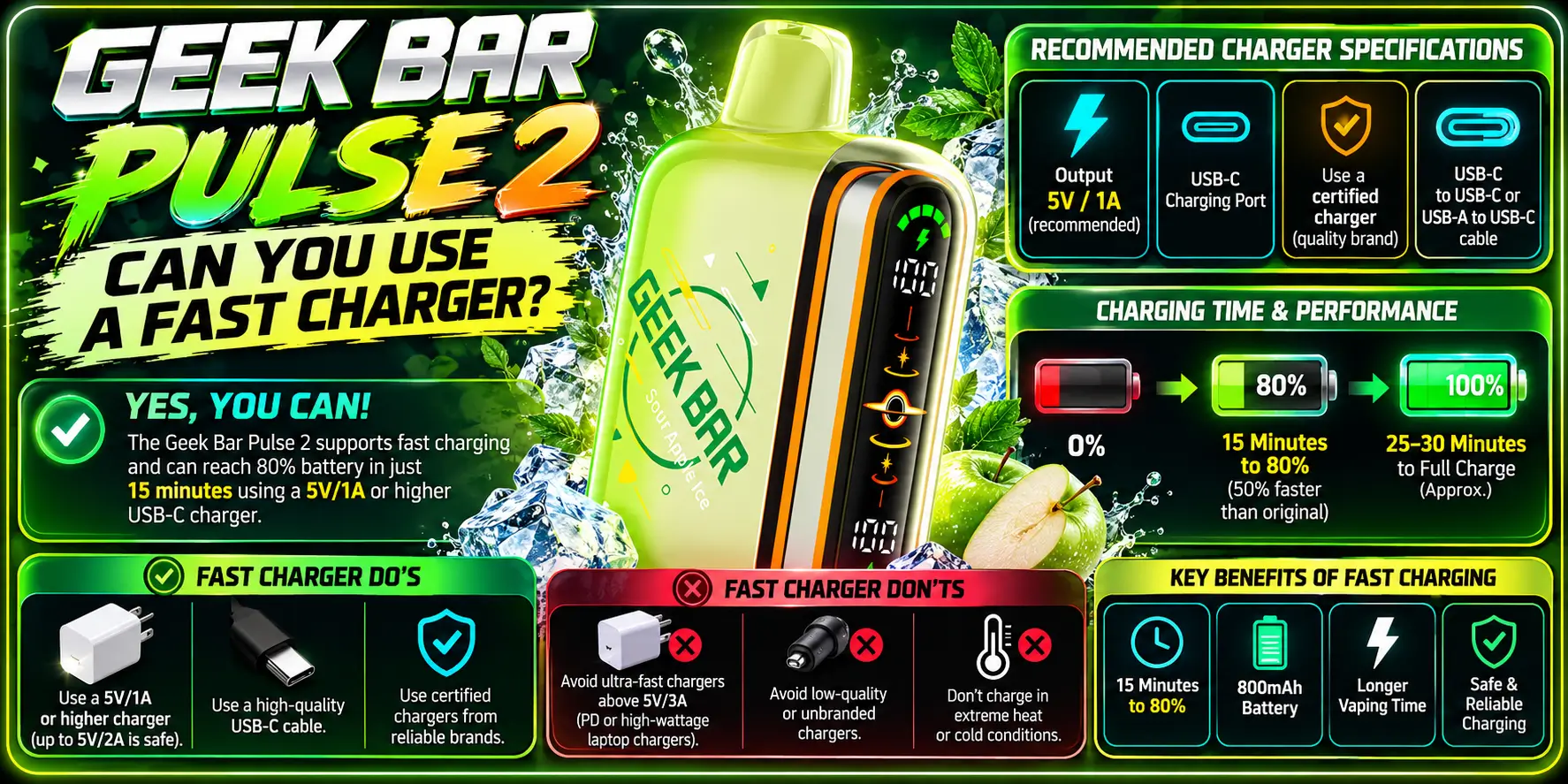
Yes, you can plug the Pulse 2 into a fast charger. A USB-C charger with higher wattage won't force extra power into the device, because the device controls how much current it accepts.
The 15-minutes-to-80% speed is built into the device itself. You don't need a special high-wattage brick to get it.
USB chargers and devices communicate before power flows. The charger offers what it can deliver, and the device takes only what it needs. That's why a laptop charger is safe for a small battery like the Pulse 2's 800mAh cell.
A small battery has a small appetite. A 65W laptop charger and a 5W phone charger will both end up feeding the device roughly the same amount, because the Pulse 2 sets the limit.
What matters more than wattage is quality. A certified, reputable charger delivers stable power, while a knockoff brick may overheat or fluctuate. Spend your money on a trustworthy charger and cable, not on a bigger number on the label.
One more tip: the cable matters more than most people expect. If charging feels slow, swap the cable before blaming the charger. A fresh, well-made cable fixes slow charging more often than any other change, and it costs a few dollars.
If you plan to carry the device around, a small power bank is a handy backup. Just confirm it outputs standard USB power and doesn't get hot during use.
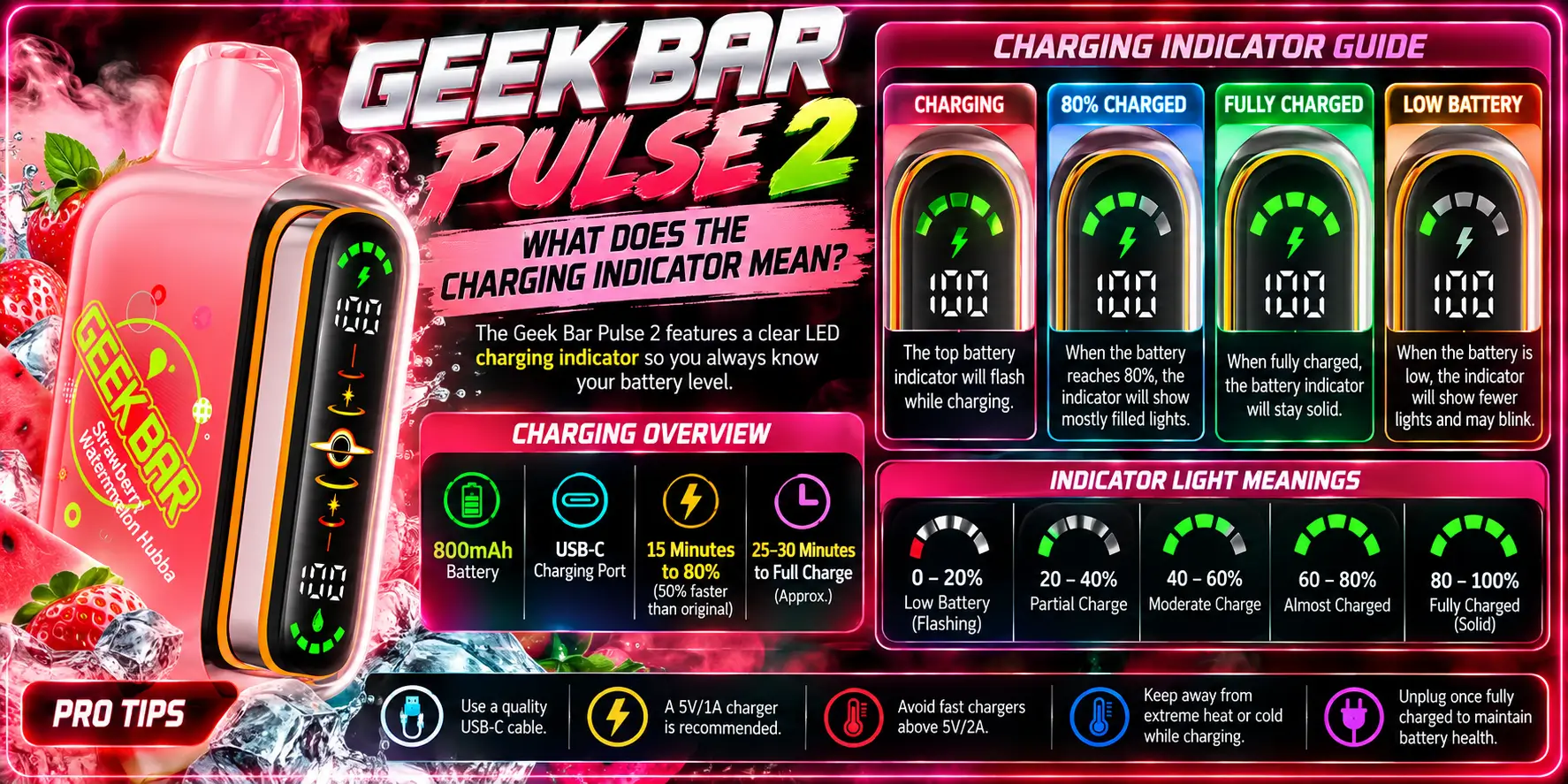
The Dome Full Screen with Binary Orbit Light shows the device's battery and charging status, so you can see at a glance whether it's charging, charged, or running low.
Exact display behavior can vary between production batches and firmware, so treat the screen as your primary source. If it shows activity when you plug in, the device is receiving power.
Want a full walkthrough of every icon and reading on the display? Our Geek Bar Pulse Screen Explained guide breaks down what each symbol means.
When the battery runs low, the display warns you before the device stops working. Weaker vapor and dimmer output are other early signs that it's time to plug in.
Don't wait for a completely dead battery if you can avoid it. Topping up at a low warning is easier on the battery than repeatedly draining it to zero, and it keeps you from getting caught mid-day.
While the device charges, the display responds to show that power is flowing. Once charging finishes, that activity stops or changes to show a full battery.
If the display shows nothing when you plug in, work through this quick checklist:
It also helps to build a small habit around the display. Glance at it before you leave the house, and top up if it looks low. That ten-second check beats discovering a flat battery on the bus, and it takes far less effort than hunting for an outlet later.
If none of that works, the issue may be with the device itself, and contacting the seller is your next step.
| Spec | Detail |
|---|---|
| Puff Count (Regular Mode) | 25,000 puffs |
| Puff Count (Pulse Mode) | 15,000 puffs |
| Nicotine Strength | 50mg (5%) |
| Coil | Dual Mesh Coil (0.8Ω) |
| Battery | 800mAh |
| Charge Speed | 15 minutes to 80% (50% faster than original) |
| Charging Port | USB-C |
| E-Liquid Retention | +30% more efficient (VPU upgrade) |
| Puff Output Increase | +32% more effective puffs (VPU upgrade) |
| Vapor Volume | +23.7% greater than Pulse 1 |
| Display | Dome Full Screen with Binary Orbit Light |
| Airflow | Adjustable slider with fully closed position |
| Dimensions | 86mm H × 28mm W × 53.4mm L |
| Weight | 83.4g |
While you wait on that 15-minute charge, browse the Geek Bar Pulse 2 Flavors lineup, or read our Geek Bar Guide for the full picture across models. You can also explore the wider Geek Bar Pulse collection.
1. How do you charge a Geek Bar Pulse 2?
Plug a USB-C cable into the port on the bottom of the device, then connect the other end to a wall adapter, computer, or power bank. USB-C is reversible, so it can't go in upside down. Check the display to confirm it's receiving power, and unplug once the battery is charged.
2. How long does the Geek Bar Pulse 2 take to charge?
The Pulse 2 reaches roughly 80% in about 15 minutes, which is 50% faster than the original Pulse. A full 100% takes a bit longer because charging slows near the top. Your cable, power source, and starting battery level can shift the exact time.
3. Can I use any USB-C cable to charge the Pulse 2?
Yes, any decent USB-C cable that carries power will work, including the cables you use for phones, tablets, and laptops. Quality matters more than type, so avoid frayed, bent, or ultra-cheap cables that can cause slow or unstable charging and connection problems over time.
4. Can you overcharge the Geek Bar Pulse 2?
Lithium-ion devices typically include circuitry that stops charging when the battery is full, so a short extra stretch on the charger is unlikely to cause harm. Still, unplug it when it's done, avoid charging overnight or on soft surfaces, and stop right away if the device gets hot or swells.
5. Is it safe to use a fast charger with the Pulse 2?
Yes. The device controls how much power it accepts, so a higher-wattage USB-C charger won't push extra current into the battery. The 15-minute-to-80% speed is built into the device, so choose a reputable, certified charger and cable for stable, safe charging instead of chasing wattage.
Find your next device in the Geek Bar Disposable lineup at Vapor Boss, a trusted retailer with verified stock and speedy US shipping.
Geek Bar Pulse — Disposable Vape
🛒 Where to Buy Online
Choose from our verified partner stores — all carry 100% authentic Geek Bar Pulse products sourced directly from official US distributors.


Twelve Tribes
Wide Selection • Best Prices


Raven Route
Fast Delivery • All Flavors


Zippyzz
Quick Shipping • Great Deals
🔒 All partner stores are verified, age-gated, and ship only to legal US states. Purchases are made directly with the retailer — not geekbarpulse.com.
⚠️ Must be 21+ to purchase.